
Discover the best Linux distros for gaming in 2026, optimized for Steam, Proton, NVIDIA and AMD GPUs, and high frame rates. From CachyOS for maximum performance to Bazzite’s SteamOS-style experience, these picks make switching from Windows easier than ever.
Gaming on Linux in 2026 is no longer a niche experiment or a compromise. If you’re frustrated with Windows bloat, forced updates, or background services eating up system resources, Linux has quietly become a serious alternative for both casual and competitive gamers.
Thanks largely to Valve’s Proton compatibility layer, thousands of Windows games now run seamlessly on Linux. Popular titles like Elden Ring, Cyberpunk 2077, and Baldur’s Gate 3 often match—or even exceed—Windows performance, with lower system overhead and fewer processes competing for your CPU and GPU. In many cases, you install Steam, click Play, and that’s it.
Modern gaming-focused Linux distros go a step further by handling the annoying parts for you. They offer automatic driver setup for NVIDIA and AMD graphics cards, low-latency kernels for smoother gameplay, and built-in tools like Lutris for managing games from Epic Games Store, GOG, and other platforms. Whether you’re building a high-end desktop, repurposing an older PC, or setting up a living-room gaming box, Linux delivers flexibility, stability, and excellent performance—without spending a cent on licenses.
In this guide, we’ve selected the best Linux distributions for gaming that are practical for everyday users, especially those coming from Windows. Most can be tested from a USB drive, installed in under 30 minutes, and used without deep Linux knowledge. No command-line obsession required. Let’s get into it.
What Is a Gaming Linux Distro?
A gaming Linux distro is a full Linux operating system that’s pre-configured or optimized specifically for playing games. Under the hood, it’s still Linux—but it comes ready with the tools, drivers, and performance tweaks that gamers care about most.
Instead of manually installing graphics drivers, compatibility layers, and performance utilities, these distros bundle everything into a smoother, more console-like experience. They’re designed to reduce input lag, minimize stutter, and make Windows games playable without dual-booting or running virtual machines.
If you’re new to Linux gaming, here are a few key terms you’ll see often, explained in plain English:
- Proton: Valve’s compatibility layer that allows Windows games to run on Linux through Steam. It translates Windows graphics calls (like DirectX) into Vulkan, a modern, cross-platform graphics API. Most popular Steam games work out of the box, with community ratings available on ProtonDB.
- Wine and Lutris: Wine lets Windows software run on Linux. Lutris is a friendly launcher that simplifies managing games from Epic Games Store, GOG, Battle.net, and others, often using Wine or Proton behind the scenes.
- Graphics drivers: NVIDIA users typically rely on proprietary drivers for best performance, while AMD users benefit from open-source Mesa drivers that are already built into the system. Most gaming distros install the right drivers automatically.
- Kernels: The kernel is the core of the operating system. Gaming-focused distros often use low-latency or performance-tuned kernels to reduce stuttering and improve responsiveness.
- Desktop environments (DEs): This is the graphical interface. KDE Plasma is highly customizable and popular with gamers, GNOME offers a clean, distraction-free workflow, and lightweight options like XFCE can squeeze out extra performance on older hardware.
- Release models: Rolling-release distros deliver the latest drivers and software continuously, which is great for new GPUs. Point-release or LTS distros prioritize stability and fewer surprises.
Most gaming distros include Steam by default (or make it a one-click install), along with tools like MangoHud for FPS monitoring and Gamescope for resolution scaling and HDR. You can usually try them from a live USB first, so there’s no risk to your existing system.
Best Linux Gaming Distros: Quick Comparison
Here’s a quick snapshot to help you match a distro to your hardware, experience level, and gaming style.
| Distro Name | Base | Desktop Environment | Release Model | Best For |
|---|---|---|---|---|
| CachyOS | Arch Linux | KDE or GNOME | Rolling | Maximum FPS and high-end performance |
| Pop!_OS | Ubuntu | GNOME (COSMIC) | Point releases | NVIDIA gamers and easy setup |
| Nobara | Fedora | KDE Plasma | Semi-rolling | Streaming and content creation |
| Bazzite | Fedora Atomic | KDE or GNOME (Steam-style) | Immutable / Atomic | Couch and console-style gaming |
| Garuda Linux | Arch Linux | KDE Plasma (customized) | Rolling | Visual polish and performance tweaks |
| EndeavourOS | Arch Linux | XFCE (others available) | Rolling | Clean Arch experience with new drivers |
| Drauger OS | Ubuntu | KDE Plasma | Point releases | Stability-focused gaming for beginners |
Best Linux Distros for Gaming
The following distributions stand out in 2026 for their strong gaming performance, reliable driver support, and smooth Steam and Proton integration. Each one takes a slightly different approach—some prioritize raw performance, others stability or ease of use—but all make Linux gaming a genuinely viable alternative to Windows.
Choose based on your hardware, tolerance for updates, and how much customization you want. There’s no wrong pick—just the one that fits your playstyle best.
CachyOS
Best for Maximum FPS and High-End Performance
- Base: Arch Linux
- Desktop Environment: KDE Plasma, GNOME, or others (selectable during installation)
- Release Model: Rolling release with constant kernel and driver updates
- Package Manager: Pacman (via the Pamac graphical store)
- Minimum Hardware: 8 GB RAM recommended (designed for modern CPUs and powerful GPUs)
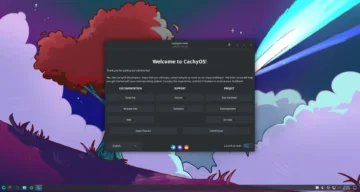
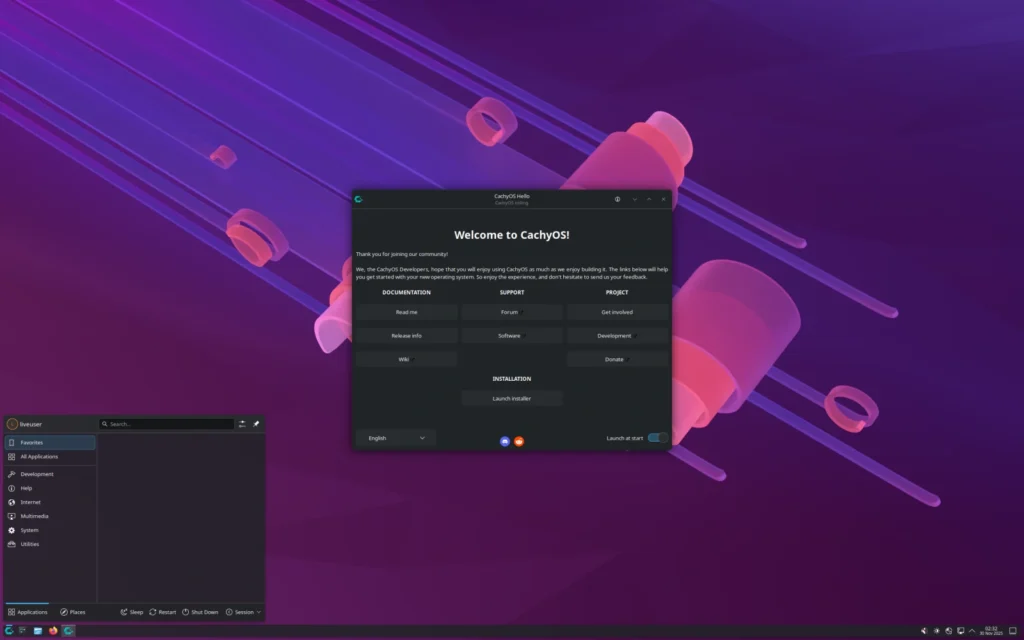
CachyOS is built for gamers who care about raw performance above all else. Instead of using generic kernels, it ships with aggressively optimized, CPU-aware schedulers that are tuned specifically for gaming workloads. On modern hardware, this can translate into noticeably higher frame rates and lower input latency, especially in demanding or competitive titles.
Because it’s based on Arch Linux, CachyOS delivers the newest Mesa graphics drivers, Vulkan updates, and kernel improvements as soon as they’re available. This is a major advantage for gamers with recent GPUs or those playing newly released titles that benefit from fast driver updates.
Steam installation is straightforward through the Pamac app store, and Proton support is excellent right out of the box. The distro also supports Proton-GE, a community-enhanced version of Proton that often improves compatibility for newer or more stubborn Windows games. Popular tools like MangoHud (for FPS and performance overlays) are readily available, and launchers like Lutris and Heroic make it easy to manage games from Epic Games Store or GOG.
While CachyOS follows a rolling-release model, it adds extra testing and stability patches to reduce the risk of disruptive updates. Gaming-focused repositories also provide extras such as OBS Studio with NVIDIA NVENC support and shader tools for visual enhancements.
If you’re running a high-refresh-rate monitor or a powerful GPU and want to squeeze every bit of performance from your system, CachyOS delivers that edge with surprisingly little manual tweaking.
Ideal for: Enthusiast gamers with high-end hardware who want the highest possible frame rates and the latest drivers.
| Pros | Cons |
|---|---|
| Excellent FPS and low latency thanks to optimized kernels | Rolling updates may occasionally require attention |
| Always up to date with the newest Mesa, Vulkan, and GPU drivers | Less beginner-friendly than Ubuntu-based distros |
| Easy access to Steam, Proton-GE, and performance overlays |
Download: Official CachyOS Download – https://cachyos.org/download/
Pop!_OS
Best for NVIDIA Gamers and Hassle-Free Setup
- Base: Ubuntu
- Desktop Environment: GNOME with COSMIC extensions
- Release Model: Point releases aligned with Ubuntu
- Package Manager: APT with Pop!_Shop (Flatpak and Snap support)
- Minimum Hardware: 8 GB RAM recommended (4 GB minimum; best with dedicated GPUs)
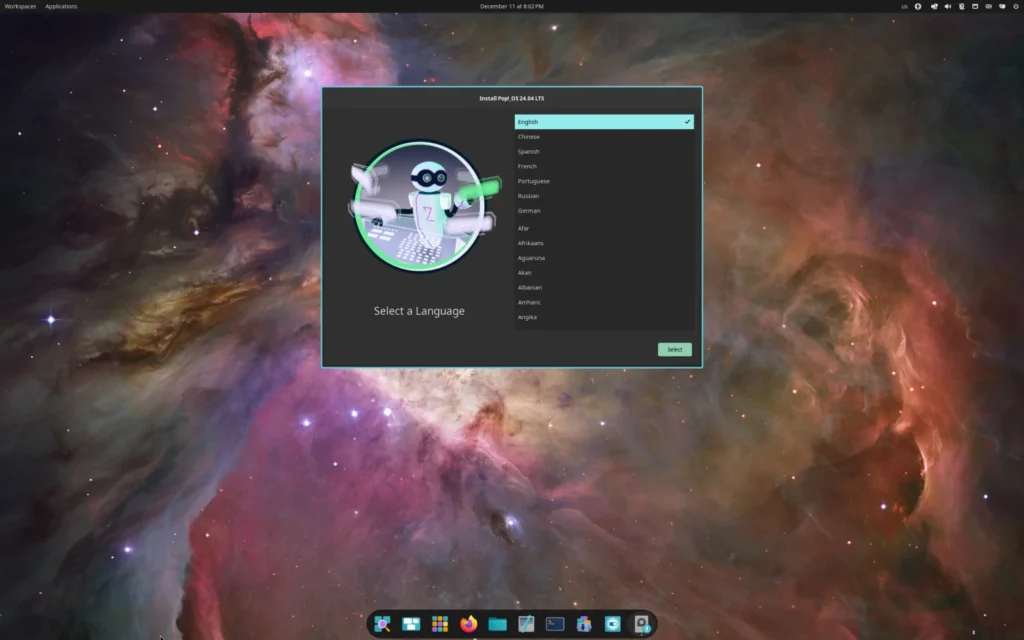
Pop!_OS has earned its reputation as one of the easiest Linux distros for gaming, especially for users with NVIDIA graphics cards. Its standout feature is a dedicated NVIDIA installer that includes proprietary drivers from the start, eliminating one of the most common pain points for new Linux gamers.
Developed by System76, Pop!_OS focuses on performance and productivity without overwhelming the user. The customized GNOME desktop includes tiling features that make it easy to manage a game, a browser, Discord, and streaming tools side by side. Steam is available with a single click from the Pop!_Shop, and Proton compatibility is excellent thanks to Ubuntu’s extensive testing and support ecosystem.
AMD GPUs work just as smoothly using open-source Mesa drivers, which update reliably with the system. Tools like Lutris, Gamescope, and MangoHud are easy to install, and features like variable refresh rate (VRR) and HDR are supported on compatible displays.
Pop!_OS also includes recovery and system restore tools, making it safer to experiment with drivers or settings without risking a broken system. This balance of stability and performance makes it a strong choice not just for gaming, but for mixed workloads like editing gameplay footage or streaming.
Ideal for: NVIDIA users, gamers switching from Windows, and anyone who wants a polished, low-maintenance gaming setup.
| Pros | Cons |
|---|---|
| Dedicated NVIDIA installer for smooth, reliable driver setup | Some Snap-based apps can feel slower |
| Excellent Steam and Proton compatibility out of the box | Not as aggressively optimized as Arch-based distros |
| Clean workflow with tiling for multitasking |
Download: Official Pop!_OS Download – https://pop.system76.com/
Nobara
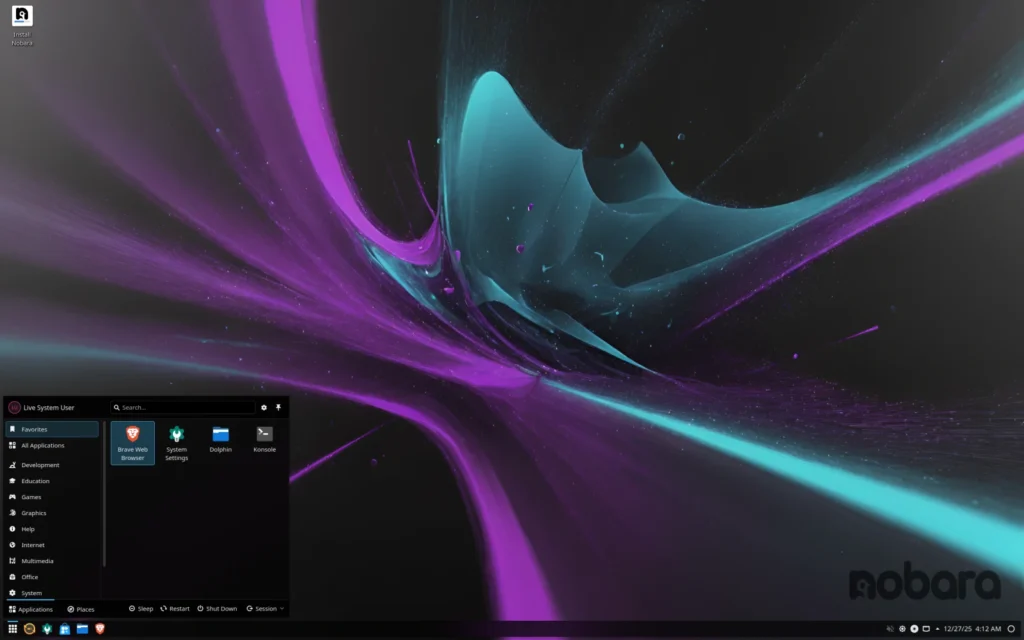
Best for Pre-Configured Gaming and Streaming
- Base: Fedora
- Desktop Environment: KDE Plasma (GNOME optional)
- Release Model: Frequent updates with gaming-focused patches
- Package Manager: DNF (via graphical software centers)
- Minimum Hardware: 8 GB RAM recommended
Nobara is designed to remove friction for gamers and streamers by shipping with many of the tweaks that users normally apply manually. It’s created by the developer behind Proton-GE, and that expertise shows throughout the system.
Out of the box, Nobara includes custom Proton and Wine builds that improve compatibility with tricky Windows games, including some multiplayer titles with anti-cheat systems. OBS Studio is also pre-configured with hardware acceleration for both NVIDIA and AMD GPUs, making Nobara particularly appealing to streamers and content creators.
The Fedora base ensures modern kernels and graphics drivers without the unpredictability of a true rolling-release distro. KDE Plasma provides a flexible desktop that works well with gaming overlays, performance monitors, and custom layouts for streaming setups. Creative tools like Kdenlive, Blender, and even DaVinci Resolve are well supported, turning Nobara into a full gaming-and-creation workstation.
If your gaming sessions often turn into recorded clips or live streams, Nobara saves a significant amount of setup time.
Ideal for: Streamers, YouTubers, and gamers who want advanced compatibility and media tools pre-installed.
| Pros | Cons |
|---|---|
| Excellent Proton and Wine compatibility from day one | Fedora’s faster update cadence requires regular updates |
| Pre-configured OBS and creative tools | KDE may feel busy for users who prefer simpler desktops |
| Easy setup for NVIDIA and AMD drivers |
Download: Official Nobara Download – https://nobaraproject.org/
Bazzite
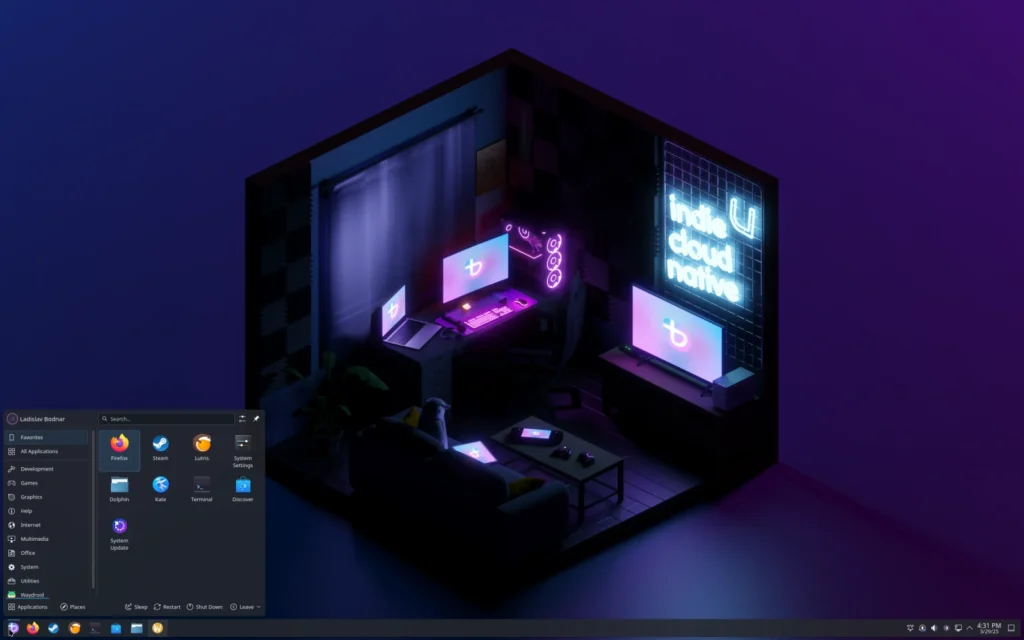
Best for Couch and Console-Style Gaming
- Base: Fedora (Atomic/immutable)
- Desktop Environment: KDE Plasma or GNOME with Steam-focused layouts
- Release Model: Immutable, image-based updates
- Package Manager: RPM-OSTree with Flatpak apps
- Minimum Hardware: 8 GB RAM recommended
Bazzite is the closest thing to SteamOS you can install on a regular PC. Built on Fedora’s immutable architecture, it applies system updates as complete images that can be rolled back instantly, dramatically reducing the risk of broken updates.
Steam is front and center, often booting directly into Big Picture Mode for a console-like experience with full controller support. Proton is tightly integrated, and compatibility with Windows games—including many that rely on anti-cheat—is excellent. NVIDIA and AMD drivers are handled automatically, while Gamescope enables features like resolution scaling, HDR, and variable refresh rate.

Beyond Steam, tools like Heroic Launcher and EmuDeck integrate cleanly through Flatpak, making Bazzite a strong option for retro emulation or mixed libraries. The immutable design does limit deep system customization, but that trade-off delivers exceptional reliability.
If your goal is to sit down, grab a controller, and play without worrying about system maintenance, Bazzite excels.
Ideal for: Living-room PCs, couch gaming setups, handheld devices, and users who want SteamOS-style stability.
| Pros | Cons |
|---|---|
| Extremely stable, rollback-safe system updates | Less flexible for heavy productivity or system tweaks |
| Console-like Steam experience with automatic driver support | Immutable design limits low-level customization |
| Excellent scaling, HDR, and VRR support |
Download: Official Bazzite Download – https://bazzite.gg/
Garuda Linux
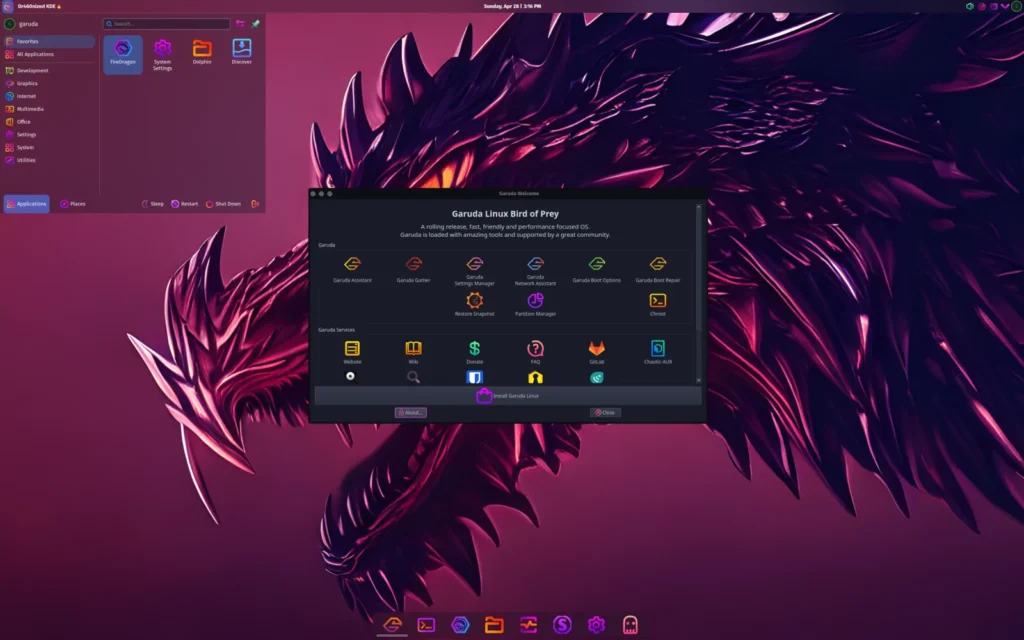
Best for Stunning Visuals and Arch Gaming Tweaks
- Base: Arch Linux
- Desktop Environment: KDE Plasma (Dragonized Gaming edition; other options available)
- Release Model: Rolling release (with Chaotic-AUR for extra gaming packages)
- Package Manager: Pacman (via Octopi or Pamac graphical tools)
- Minimum Hardware: 8 GB RAM recommended (4 GB minimum; shines with mid-range GPUs)
Garuda Linux’s Dragonized Gaming edition turns Arch into a visually impressive gaming rig. It includes polished effects like blurred panels, smooth animations, and a KDE Plasma desktop tailored for gamers—but thanks to optimizations like zram compression, it stays efficient even under heavy load.
Gamers will find everything ready out of the box. Steam, Lutris, and Heroic launchers install with a few clicks, while Proton-GE and Wine-Staging are pre-configured through Garuda’s gamer tools. Proprietary NVIDIA/AMD drivers, vkBasalt shaders, and CoreCtrl for AMD overclocking are automated, so you spend less time tinkering and more time playing. Mangohud is included for FPS overlays and latency stats, making it easy to monitor performance in real time.
The Chaotic-AUR repository provides access to the latest gaming packages and community tweaks without manual compilation, while still maintaining relative system stability. Whether you want flashy desktops, performance monitoring tools, or streaming overlays, Garuda delivers a polished experience with plenty of customization.
Ideal for: Gamers who enjoy eye-catching desktops, easy Arch tweaks, and integrated performance monitoring.
| Pros | Cons |
|---|---|
| Automates drivers, Proton, and gaming tools | Heavy visual effects can affect older GPUs |
| Bleeding-edge packages via Chaotic-AUR | Rolling release occasionally needs user intervention |
| Zram and system tweaks optimize high-res gaming |
Download: Official Garuda Linux Download – https://garudalinux.org/editions/
EndeavourOS
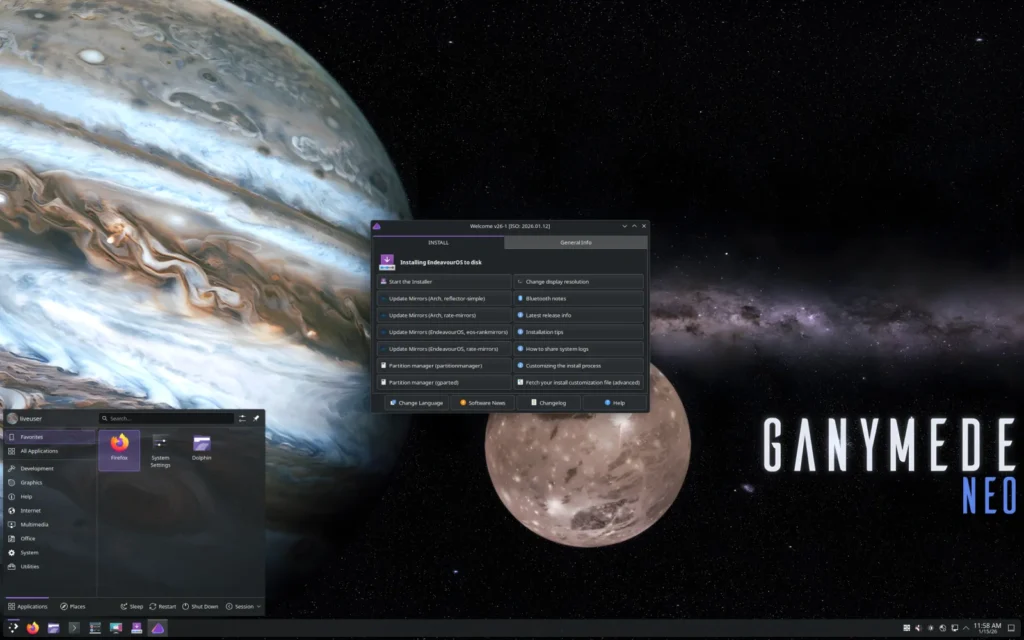
Best Easy Arch Entry for Latest Gaming Drivers
- Base: Arch Linux
- Desktop Environment: XFCE (default; KDE, GNOME, and others optional)
- Release Model: Rolling release (short stability buffer to reduce breakage)
- Package Manager: Pacman (via Pamac graphical interface; full AUR support)
- Minimum Hardware: 4 GB RAM recommended (8 GB+ for smoother gaming)
EndeavourOS makes Arch Linux approachable for gamers who want the latest drivers and kernels without manually configuring the system from scratch. Its graphical Calamares installer lets you pick a gaming-friendly desktop at install and sets up a clean base ready for Steam, Lutris, and other launchers.
After installation, Proton Experimental and Proton-GE can be easily accessed via the AUR, providing high compatibility for Windows games (check ProtonDB for gold/platinum ratings). NVIDIA drivers install smoothly through community scripts, and AMD GPUs work out of the box with open-source Mesa drivers. The Gamemode tool prioritizes CPU/GPU resources for games, improving frame rates with minimal effort.
EndeavourOS also guides new users with a welcome app and active community forums, offering tips for HDR, low-latency audio with PipeWire, and other tweaks—making it beginner-accessible despite being Arch-based.
Ideal for: Windows gamers looking for Arch-level performance and the latest drivers, without the hassle of a manual setup.
| Pros | Cons |
|---|---|
| Clean Arch base with easy installer and gaming tools | AUR packages can occasionally cause instability |
| Always-latest kernels and Mesa drivers for new games/hardware | Less pre-configured than dedicated gaming distros |
| Strong community support for drivers and Proton troubleshooting |
Download: Official EndeavourOS Download – https://endeavouros.com/
Drauger OS
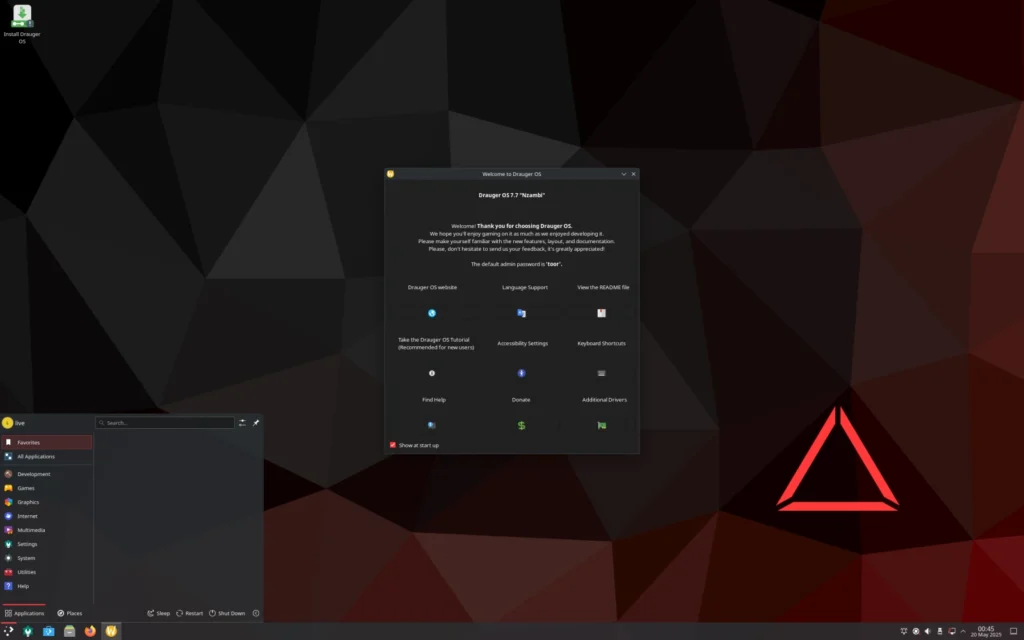
Best Stable Ubuntu Gaming for Beginners
- Base: Ubuntu
- Desktop Environment: KDE Plasma (optimized for low overhead)
- Release Model: Point releases with gaming kernel backports
- Package Manager: APT (via Discover or Ubuntu Software)
- Minimum Hardware: 4 GB RAM recommended (works well on integrated graphics too)
Drauger OS adapts Ubuntu for gaming, using a low-latency kernel tuned to reduce input lag and improve frame pacing. This makes a noticeable difference in fast-paced shooters, racing sims, or action games, while keeping the system stable for users transitioning from Windows.
Steam, Lutris, and Wine are pre-installed with Proton configured for high Windows game compatibility. NVIDIA and AMD drivers can be installed in one click, and PlayOnLinux is included for legacy Windows titles. The KDE desktop makes it easy to pin launchers, monitor GPU usage, and keep games organized without clutter.
By sticking to Ubuntu’s stable repos with selective gaming enhancements, Drauger OS offers a reliable, low-maintenance experience without sacrificing performance.
Ideal for: Beginners switching from Windows who want a stable, pre-configured Steam and Lutris gaming environment.
| Pros | Cons |
|---|---|
| Low-latency kernel with preconfigured Steam/Proton/Wine | Drivers and kernels less cutting-edge than Arch-based options |
| One-click NVIDIA/AMD driver installation | KDE’s visual customization may overwhelm some new users |
| Ubuntu’s reliability for worry-free gaming |
Download: Official Drauger OS Download – https://draugeros.org/
Level Up: Your Next Gaming Move
Gaming on Linux in 2026 isn’t just viable—it’s a powerhouse that can rival or even surpass Windows in stability, FPS, and cost (zero license fees). Distros like CachyOS squeeze every last frame out of high-end rigs, while Bazzite transforms your PC into a Steam Deck-style setup. You can finally skip forced updates and intrusive telemetry, all while enjoying Proton’s seamless compatibility with thousands of Windows titles.
Testing is risk-free: boot a live USB to try Pop!_OS for effortless NVIDIA support, Nobara if you stream or create content, or Garuda Linux for a visually stunning, performance-optimized experience. The benefits are immediate: lower input latency, better battery life on laptops, and endless customization options without system crashes.
Grab Balena Etcher, create a live USB, explore your games library, and check ProtonDB ratings for compatibility. Linux gaming in 2026 gives you a stable, free, and future-proof platform. Whether you’re chasing high FPS, streaming, or just want a clean system, your next high score starts here.
Frequently Asked Questions
What is a Linux distribution (distro)?
A Linux distro is a complete, ready-to-use operating system built on the Linux kernel, including a desktop interface, apps, and drivers. Gaming-focused distros add enhancements like Proton support and easy Steam setup so Windows games run smoothly.
What is Proton?
Proton is Valve’s free compatibility layer (based on Wine) that lets Windows-only Steam games run natively on Linux. It converts DirectX calls to Vulkan/OpenGL, and most titles are “Platinum” rated on ProtonDB, meaning they work perfectly.
What is Wine?
Wine is an open-source tool that translates Windows programs and games to run on Linux without installing Windows. It’s the foundation for Proton and powers Lutris for non-Steam games.
What is Lutris?
Lutris is a free, graphical game manager that simplifies launching games from Steam, Epic, GOG, or itch.io. It handles Wine, Proton, and emulators automatically, taking care of scripts, tweaks, and compatibility.
What is Vulkan?
Vulkan is a modern graphics API (similar to DirectX 12) that improves FPS and reduces CPU load in games. Linux gaming distros include the latest Vulkan drivers for NVIDIA and AMD, powering both Proton and native Linux titles.
What is the best gaming distro for Windows users?
Pop!_OS—its familiar GNOME interface, dedicated NVIDIA ISO, and effortless Proton setup make Linux feel like an upgraded Windows without the bloat.
What is the best distro for NVIDIA GPU users?
Pop!_OS—the proprietary NVIDIA drivers install automatically with the dedicated ISO, ensuring smooth boots and peak performance.
What is the best distro for AMD GPU users?
CachyOS—its Arch-based rolling release delivers the latest Mesa drivers, plus kernel tweaks that maximize Vulkan efficiency for modern AMD hardware.
Can I play Windows games on Linux?
Yes. Proton handles most Steam titles flawlessly, and Lutris/Wine covers Epic, GOG, and other platforms. Over 20,000 games run on Linux, often with better FPS and stability than on Windows.
How do I install Linux on my PC?
- Download the ISO from the official website.
- Use Balena Etcher (free for Windows, macOS, Linux) to flash the ISO to a USB drive. Note: This erases all data on the USB.
- Restart, enter BIOS/UEFI (usually F2, Del, or Esc), and set the USB as the first boot device.
- Boot into the live session to test games via Steam, then install Linux. Most installers allow safe dual-boot alongside Windows.