
Looking for free alternatives to Microsoft PowerPoint in 2026? We’ve tested and ranked the top 10 tools—from Google Slides and Canva to offline options like LibreOffice—that deliver collaboration, stunning designs, AI features, and full functionality without paying a dime.
Microsoft PowerPoint has been the default presentation tool for decades, but its full feature set now sits behind a Microsoft 365 subscription that many casual users, students, and small teams simply don’t need or want to pay for. Fortunately, the landscape of free presentation software has matured dramatically, offering everything from real-time collaboration and cloud syncing to AI-powered slide generation and beautiful templates that often look better than what PowerPoint produces out of the box.
Whether you’re a student putting together a class project, a professional prepping a client pitch, or just someone creating a family slideshow, there are excellent free options that match—or in some cases exceed—PowerPoint’s capabilities. The best part? Most work seamlessly across devices, export to .pptx format, and impose no hard limits on core use.
What’s the Best Free Alternative to PowerPoint?
There isn’t a single “best” tool for everyone—it depends on your workflow—but three options consistently rise above the rest and will cover the vast majority of users.
Google Slides remains the top overall pick for most people because it’s completely free, requires no installation, offers rock-solid real-time collaboration, and integrates tightly with Google Drive and Meet. If you already use Gmail or Google Workspace, it’s essentially frictionless and handles team projects better than anything else in the free tier.
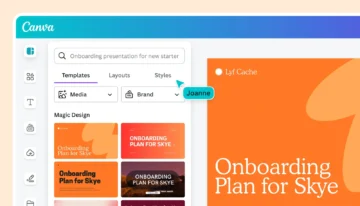
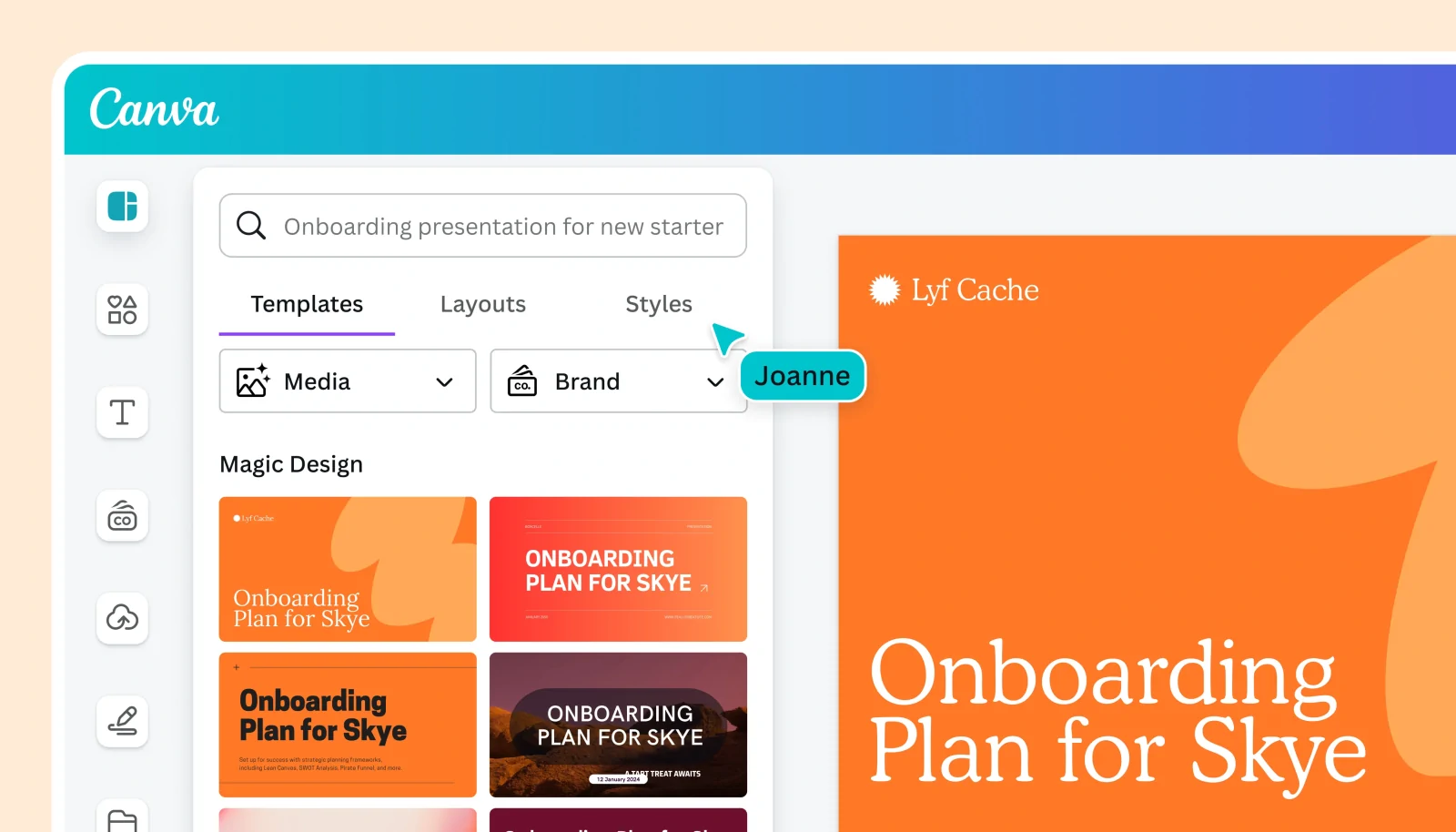
Canva is the choice when visual impact matters most. Its template library and drag-and-drop design tools produce modern, eye-catching decks faster than any traditional editor, and its Magic Studio AI features can generate an entire presentation from a simple prompt—often rivaling paid design services. The free plan is generous enough for almost all personal and small-team needs.
For those who prefer working offline or want a true desktop experience without cloud dependency, LibreOffice Impress stands out as the strongest open-source option. It’s powerful, handles complex PowerPoint files reliably, and costs absolutely nothing forever—no ads, no upsells, no account required.
The Best Free PowerPoint Alternatives in 2026
The free presentation space has never been more competitive. From AI-driven generators to full desktop suites, these tools offer different strengths—collaboration, design polish, offline reliability, or ecosystem integration—while all remaining completely free for core use. Below are our top 10 picks, ranked by a combination of features, ease of use, user feedback, and real-world testing.
Google Slides
The Best Free Collaborative Presentation Tool
Available on: Web (any browser), Android, iOS
Pricing: Completely free with a Google account (part of Google Workspace; paid plans available for businesses but not required)
Rating: 9.7/10
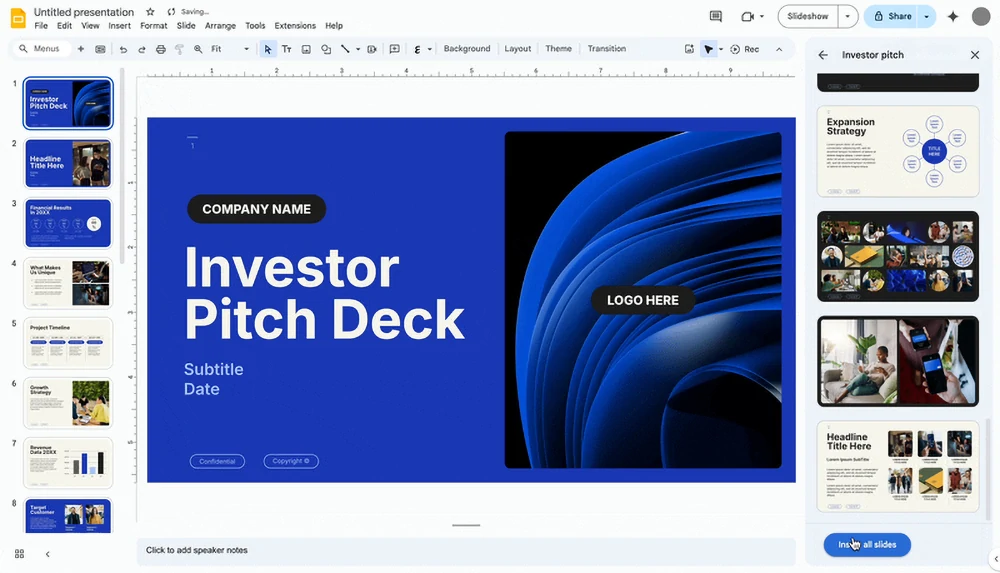
If you’ve ever needed to work on a presentation with a group—whether it’s a school project, a team pitch, or a family slideshow—Google Slides is probably the first tool that comes to mind, and for good reason. It’s built for real-time collaboration: multiple people can edit the same deck simultaneously, see each other’s cursors, leave comments, and even chat inside the file. Changes save automatically to Google Drive, so there’s no risk of losing work, and you can access your presentations from any device with a browser or the mobile apps.
The interface is clean and straightforward, very similar to PowerPoint but without the clutter. You get solid basics—transitions, animations, speaker notes, and easy embedding of images, videos, charts, and Google Docs/Sheets content—plus seamless integration with the rest of Google’s ecosystem. If you already live in Gmail, Drive, or Meet, Slides feels like a natural extension. For quick needs, you can start from a blank deck or choose from a decent library of templates, though it’s not as visually flashy as some competitors.
Google has also been rolling out Gemini AI features (formerly Duet AI) directly into Slides for Workspace users, and by 2026 the core functionality is available to free accounts in a limited but useful form: you can generate slide outlines, suggest layouts, or rewrite text with a simple prompt. It’s not as fully conversational as dedicated AI tools, but it speeds up drafting significantly.
| Pros | Cons |
|---|---|
| Real-time collaboration with unlimited editors | Fewer designer-grade templates than Canva |
| Automatic saving and version history | Requires internet connection for full functionality (offline mode is limited) |
| Excellent integration with Google Drive, Docs, Sheets, and Meet |
Canva
The Ultimate Design-Focused Presentation Builder
Available on: Web (any browser), Windows, Mac, Android, iOS
Pricing: Free plan with thousands of templates and assets; Pro plan ($15/month) unlocks premium elements and advanced features
Rating: 9.5/10
Canva stands out for anyone who wants presentations that look professionally designed without hiring a designer. Its massive library of modern templates—tens of thousands, covering everything from business pitches to classroom lessons—gives you a polished starting point in seconds. Drag-and-drop editing, combined with an enormous stock library of photos, icons, videos, and animations, makes it incredibly easy to create visually striking slides even if you have zero design experience.
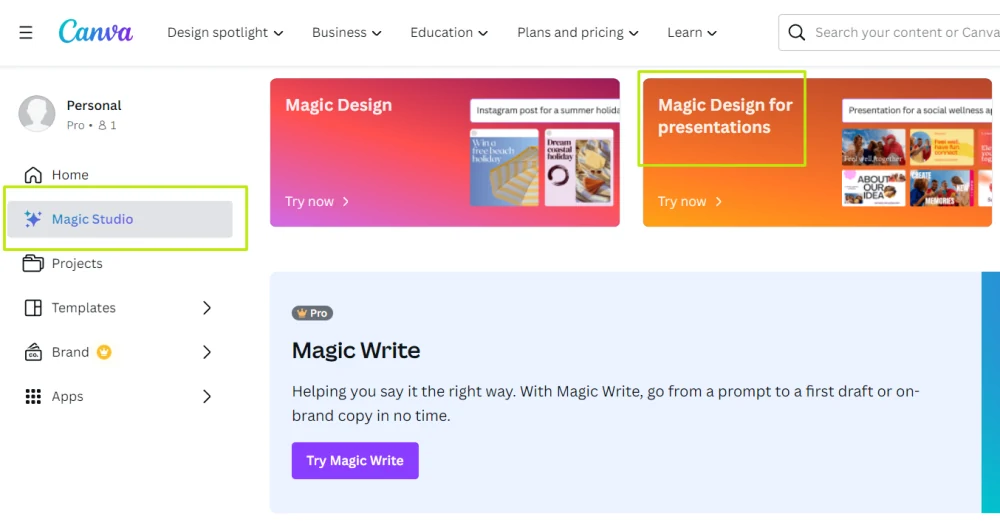
What’s pushed Canva ahead in recent years is its Magic Studio AI suite. With Magic Design, you can type a simple prompt—like “create a 10-slide presentation about renewable energy trends for a corporate audience”—and Canva will generate a full deck complete with layout suggestions, relevant images, and placeholder text. You can also use Magic Write to rewrite or expand bullet points, or remove backgrounds and generate images on the fly. The AI feels conversational and fast, and the results are usually on-brand and attractive right out of the gate.
Exporting to PowerPoint format is fully supported on the free plan, with no watermarks on basic projects. Collaboration is real-time (though not quite as seamless as Google Slides), and you can present directly from Canva or share editable links. For most everyday users—students, marketers, small teams—Canva delivers the best-looking results with the least effort.
| Pros | Cons |
|---|---|
| Stunning templates and huge asset library | Some premium photos/icons require Pro plan |
| Powerful AI tools (Magic Design, Magic Write) for quick creation | Can feel overwhelming with so many options |
| Full PowerPoint export on free plan |
LibreOffice Impress
The Top Offline Open-Source Alternative
Available on: Windows, Mac, Linux (desktop); no official mobile apps
Pricing: Completely free and open-source; no paid tiers
Rating: 9.1/10
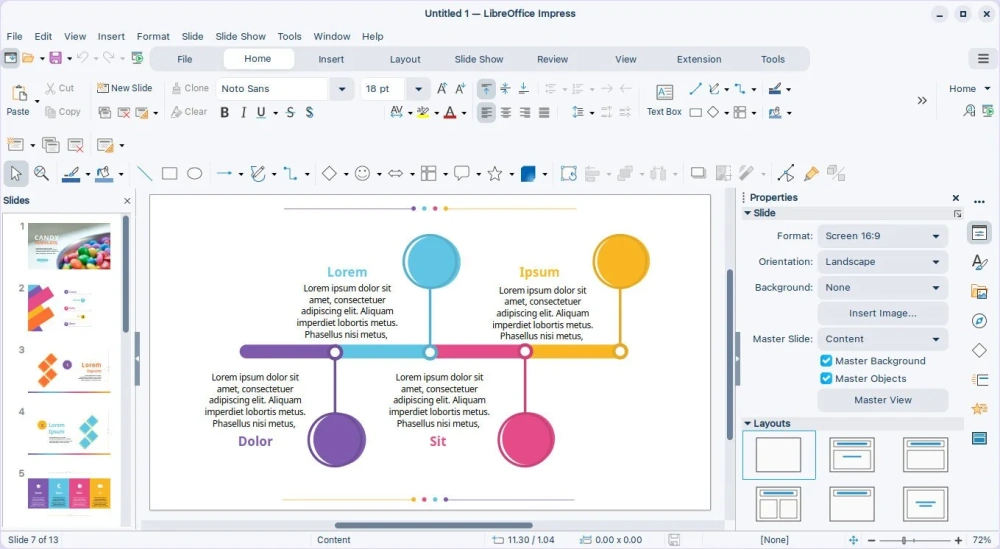
LibreOffice Impress is the go-to choice when you want a full-featured presentation tool that lives on your computer and costs absolutely nothing. As part of the LibreOffice suite, it’s a direct rival to Microsoft Office, offering nearly all the same core capabilities: slide transitions, animations, master slides, speaker notes, and strong support for charts and multimedia. It opens and saves PowerPoint files (.pptx) remarkably well, making it easy to switch without losing formatting.
The biggest advantage is true offline reliability—no internet required, no account needed, no usage limits. You own your files completely, and there are no ads or upsell prompts. The interface looks a bit dated compared to web-based tools, but it’s highly customizable, and power users appreciate the deep control over every element. Extensions from the community add extra templates and features if the built-in ones feel sparse.
For students writing theses, professionals preparing reports on secure machines, or anyone wary of cloud services, Impress delivers a rock-solid, no-compromise experience. Regular updates keep it compatible with the latest PowerPoint features, and it runs smoothly even on older hardware.
| Pros | Cons |
|---|---|
| Full offline functionality with no restrictions | Interface feels older than modern web tools |
| Excellent PowerPoint compatibility | Fewer stylish templates out of the box |
| Completely free forever with no ads |
Gamma.app
The AI-Powered Quick Presentation Generator
Available on: Web (any browser); no dedicated desktop or mobile apps
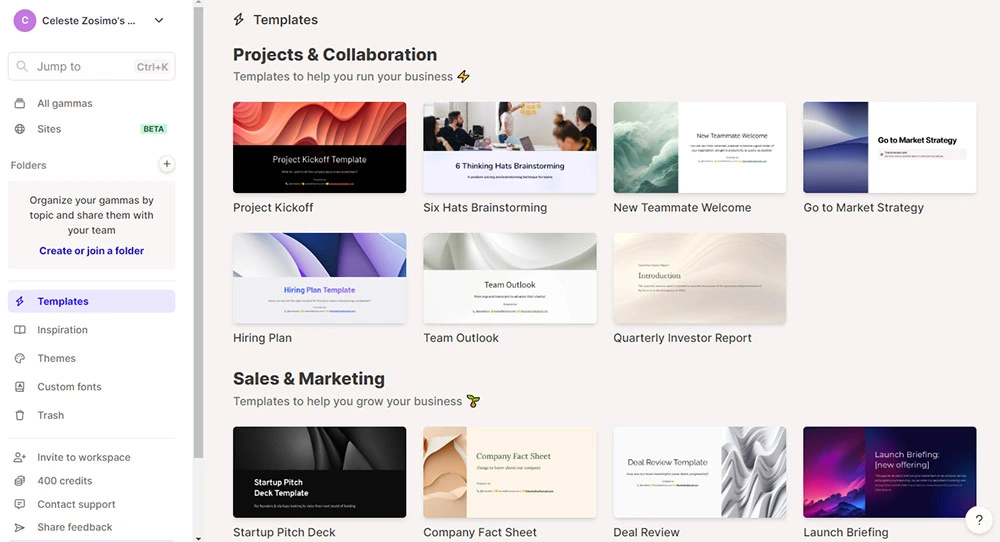
Pricing: Free plan with 400 credits (one typical presentation costs ~40 credits); paid plans start at $8/month for unlimited
Rating: 8.9/10
Gamma is built for speed: you paste or type a topic outline, and its AI creates a complete, beautifully designed presentation in minutes. The results lean toward clean, modern aesthetics—think sharp typography, balanced layouts, and relevant stock images—without looking generic. It’s especially handy when you’re short on time and need something that looks thoughtful and professional fast.
The workflow is straightforward: enter your content or prompt, choose a tone and length, and Gamma generates slides with headings, bullet points, and visuals. You can then tweak individual elements in the editor (add charts, embed videos, change colors), and export to PowerPoint or PDF for free. Credits don’t renew monthly on the free tier, so it’s best for occasional use, but opening a new account resets them if needed.
It won’t replace tools for heavy collaboration or complex animations, but for solo creators needing a polished deck quickly—sales pitches, lesson plans, startup ideas—Gamma consistently delivers impressive output with minimal effort.
| Pros | Cons |
|---|---|
| Fast AI generation of full, attractive decks | Free credits are limited and non-renewing |
| Clean, professional designs by default | Less control over fine details than traditional editors |
| Free PowerPoint export |
Microsoft PowerPoint Online
The Familiar Free Web Version of the Classic
Available on: Web (any browser), Android, iOS (limited); full features require OneDrive
Pricing: Free with a Microsoft account; premium features (Copilot AI, extra templates) via Microsoft 365 subscription
Rating: 8.8/10
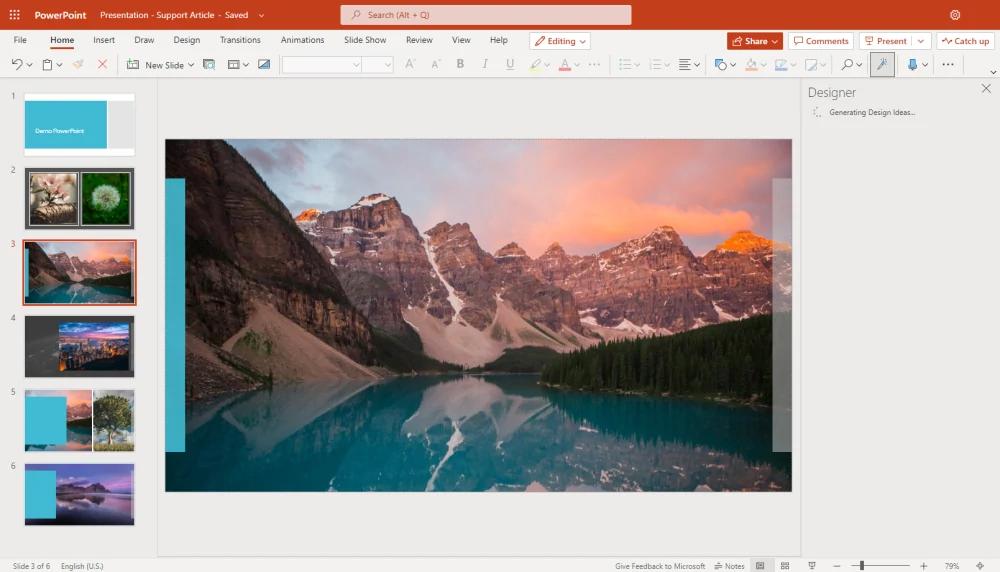
If you’ve ever used PowerPoint, the online version will feel instantly familiar—no learning curve required. It includes most of the core tools you expect: slide layouts, transitions, animations, Designer suggestions for layouts, and solid chart options. Files save to OneDrive automatically, and real-time co-authoring works smoothly for teams already in the Microsoft ecosystem.

The big draw is perfect compatibility: open any .pptx file, edit it, and save it back without formatting glitches. You also get access to Microsoft’s stock image library and basic Copilot AI assistance (suggesting content or summarizing slides) on the free tier, though the full AI experience is behind the paywall. Presenting is straightforward, with presenter view and integration into Teams meetings.
It’s not as flashy as Canva or as AI-forward as Gamma, but for anyone who needs the “real” PowerPoint experience without installing software or paying, the web version is reliable and capable.
| Pros | Cons |
|---|---|
| Identical to desktop PowerPoint interface | Some advanced features require Microsoft 365 |
| Perfect file compatibility and OneDrive integration | Fewer creative templates than design-focused tools |
| Solid real-time collaboration |
Apple Keynote
The Most Elegant Presentation App for Apple Users
Available on: Mac, iOS, iPadOS, Web (via iCloud)
Pricing: Completely free with an Apple device or iCloud account; no paid tiers
Rating: 8.8/10
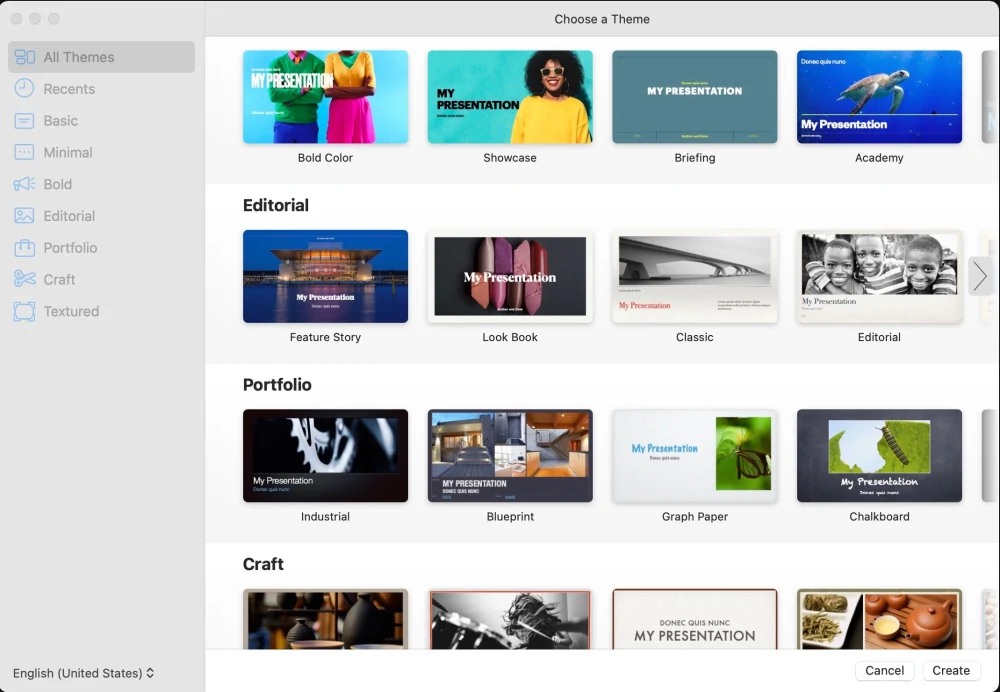
Keynote is Apple’s answer to PowerPoint, and it often outshines it in pure visual polish. The app is famous for its smooth, cinematic transitions and animations—things like Magic Move, where objects seamlessly shift between slides—that make presentations feel more dynamic and engaging without much extra work. Templates are minimalist and sophisticated, leaning toward clean typography and high-quality graphics that look great on Retina displays.
Everything syncs effortlessly across Apple devices via iCloud, and the web version lets you edit from any browser if you’re away from your Mac or iPad. Collaboration works in real time, though it’s most seamless within the Apple ecosystem. You can export to PowerPoint format reliably, though some advanced animations may simplify during conversion.
For students, educators, or professionals already invested in Apple hardware, Keynote delivers a premium experience at no cost, with presenter tools like rehearsal mode and remote control from an iPhone that feel thoughtfully designed.
| Pros | Cons |
|---|---|
| Stunning animations and transitions | Limited to Apple ecosystem for best experience |
| Beautiful, professional templates | Some features don’t translate perfectly to PowerPoint export |
| Seamless iCloud syncing across devices |
Zoho Show
A Clean Cloud-Based Collaborative Option
Available on: Web (any browser), Android, iOS
Pricing: Completely free for personal use; paid plans for advanced team features
Rating: 8.3/10
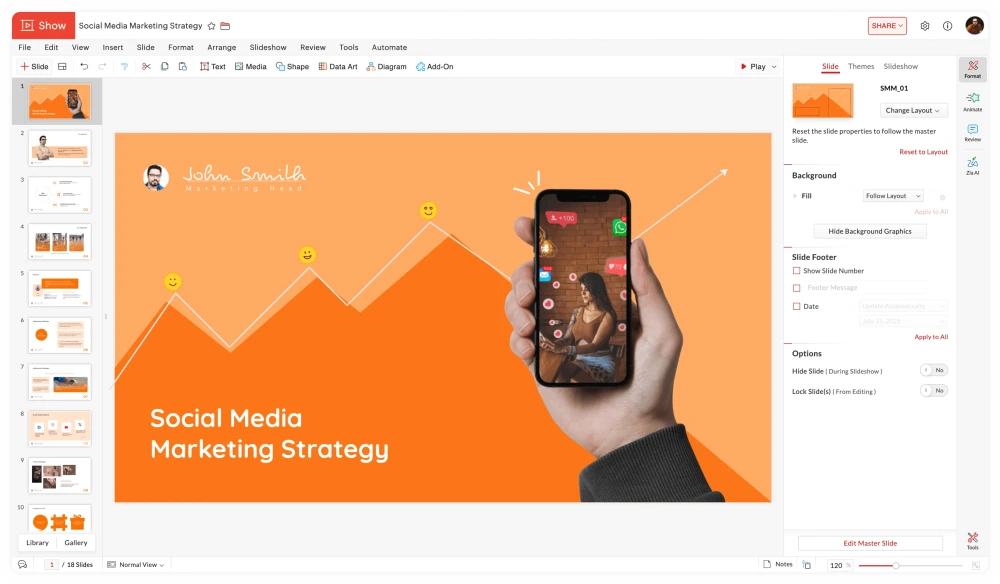
Zoho Show is a no-frills, web-based presentation tool that prioritizes simplicity and teamwork. It offers real-time collaboration similar to Google Slides, with commenting, version history, and the ability to present remotely or embed slides in websites. The interface is uncluttered, making it quick to jump in and start building decks without distractions.
It supports importing and exporting PowerPoint files with good fidelity, and includes a solid selection of templates, charts, and basic animations. Integration with the broader Zoho suite (Docs, Sheets, CRM) is a bonus if you already use those tools. There’s no heavy AI generation, but contextual smart guides help with alignment and layout as you work.
It’s a strong pick for small teams or individuals who want a dependable online alternative that doesn’t push premium upgrades aggressively and stays completely free for core use.
| Pros | Cons |
|---|---|
| Clean interface with solid collaboration | Template library smaller than Canva’s |
| Excellent PowerPoint import/export | Fewer advanced animations and effects |
| Full feature set free for personal accounts |
WPS Office Presentation
The Closest Free Clone to Classic PowerPoint
Available on: Windows, Mac, Linux, Android, iOS
Pricing: Free with occasional ads; Premium ($29.99/year) removes ads and adds cloud features
Rating: 8.0/10
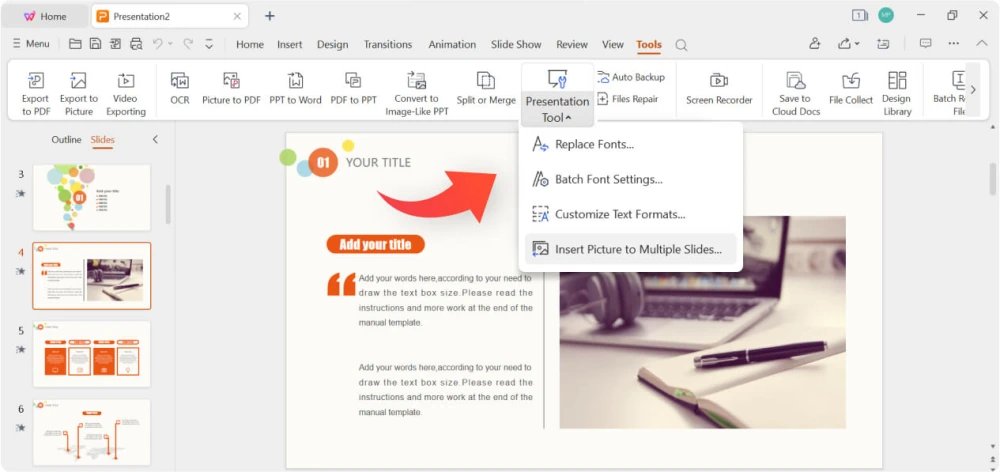
WPS Office Presentation feels like stepping back into Microsoft PowerPoint from a decade ago—almost identical ribbon interface, familiar menus, and the same workflow. That makes it ideal for anyone transitioning from PowerPoint who wants minimal retraining. It handles .pptx files exceptionally well and includes tabbed editing so you can work on multiple presentations at once.
The free version is surprisingly capable, with a decent template collection, transitions, animations, and even some built-in PDF conversion tools. It runs lightweight on older hardware and works fully offline on desktop. Mobile apps are solid for quick edits on the go.
Ads appear occasionally (usually a banner), but they’re non-intrusive. For users who just want “PowerPoint but free” across all platforms, including Linux, WPS is one of the easiest switches.
| Pros | Cons |
|---|---|
| Near-identical interface to PowerPoint | Occasional ads in free version |
| Excellent cross-platform and offline support | Some advanced features locked behind Premium |
| Strong .pptx compatibility |
OnlyOffice Presentation
Versatile Suite with Strong Microsoft Compatibility
Available on: Windows, Mac, Linux (desktop), Web (self-hosted or cloud), Android, iOS
Pricing: Completely free for personal and community edition; paid plans for enterprise features
Rating: 7.9/10
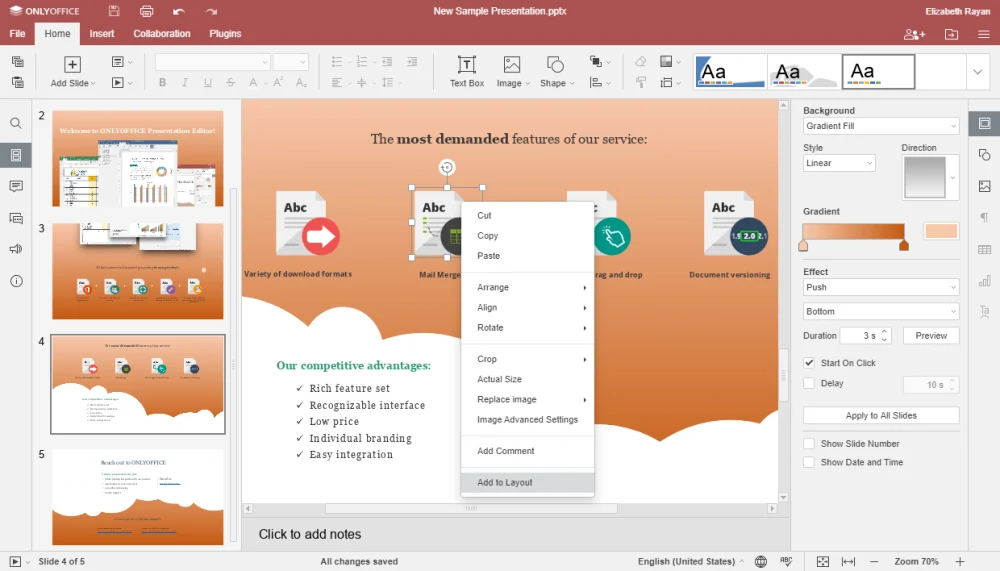
OnlyOffice’s presentation editor is part of a full office suite that rivals LibreOffice and Microsoft 365 in compatibility. It opens and saves .pptx files with high accuracy, preserving complex formatting, animations, and transitions better than many free alternatives. Real-time collaboration is available both in the cloud version and self-hosted setups.
The interface is modern and tabbed, with support for plugins that extend functionality (extra templates, YouTube integration, photo editors). It works entirely offline on desktop installs and offers end-to-end encryption options in the cloud—appealing for privacy-conscious users.
While the template selection isn’t as flashy as design-focused tools, OnlyOffice shines when you need a robust, all-in-one office package that feels professional without any cost for core use.
| Pros | Cons |
|---|---|
| Outstanding .pptx compatibility and editing fidelity | Template library is functional but basic |
| Desktop and self-hosted options for privacy | Collaboration requires setup for self-hosted |
| Full office suite included at no cost |
Calligra Stage
Lightweight Open-Source for Linux Enthusiasts
Available on: Linux (primary), Windows, Mac (via ports)
Pricing: Completely free and open-source
Rating: 7.8/10
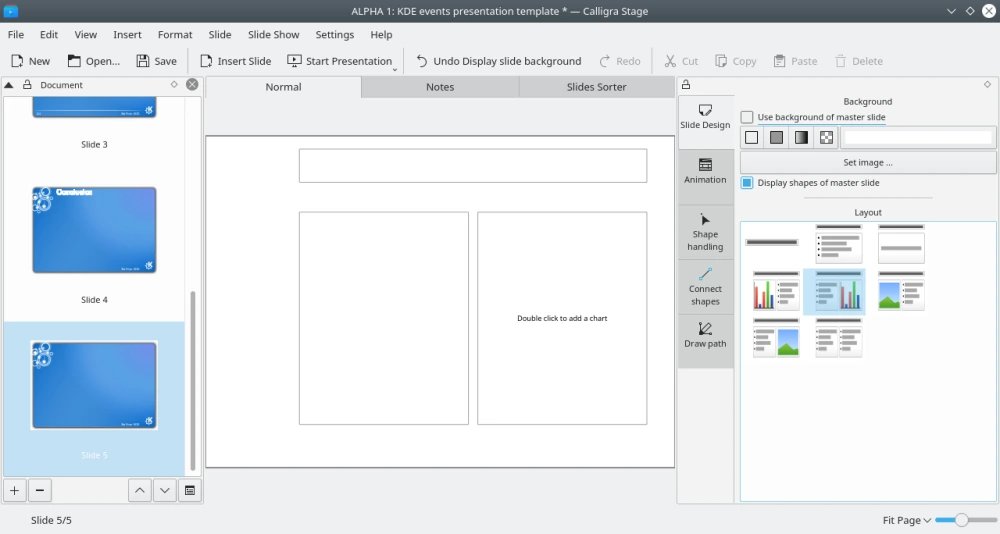
Calligra Stage is the presentation component of the Calligra Suite, a KDE project focused on lightweight, native Linux applications. It provides all the essentials—slides, transitions, shapes, charts, and speaker notes—in a clean, Qt-based interface that integrates nicely with Plasma desktops.
It handles basic PowerPoint import/export adequately for simple decks and runs very efficiently on modest hardware. Docker support and touch-friendly features make it viable on tablets or older machines where heavier suites might lag.
It’s not the most feature-rich or polished option, and template variety is limited, but for Linux users who prefer staying within the open-source ecosystem and avoiding web dependencies, Stage is a dependable, no-fuss choice.
| Pros | Cons |
|---|---|
| Extremely lightweight and fast | Limited template and effect selection |
| Native integration with KDE/Linux environments | PowerPoint compatibility not as strong as LibreOffice |
| Fully offline and open-source |
Choosing the Right Free Tool for Your Needs
You no longer need to pay for Microsoft 365 to create professional-looking presentations. The options above give you everything from seamless team editing and AI-assisted drafting to elegant animations and total offline control. Most users will be perfectly served by starting with Google Slides for collaboration, Canva for design-forward decks, or LibreOffice Impress for offline work.
Try a couple that match your typical workflow—most require no signup or take only seconds to get started—and you’ll likely find one that feels better than PowerPoint ever did. The switch is usually painless thanks to strong .pptx import/export support, and you’ll save money while gaining features Microsoft charges extra for.