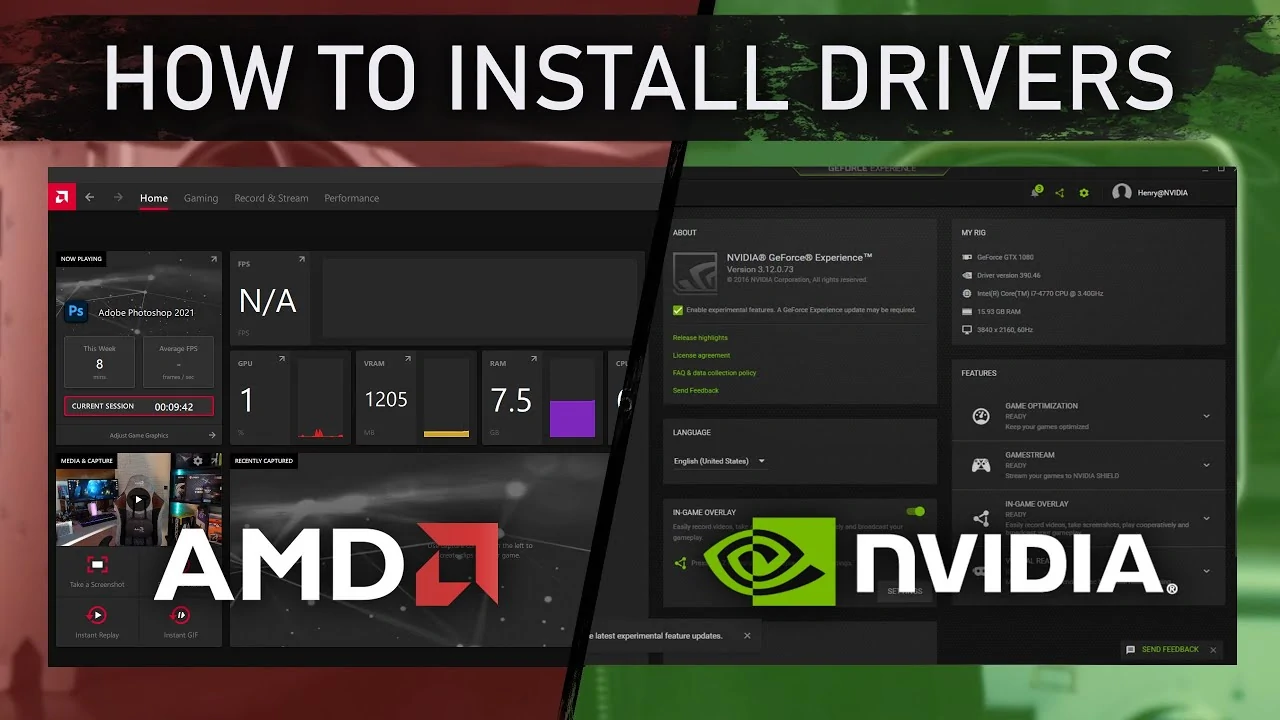

Tired of new GPU drivers ruining your games with lag, stuttering, lower FPS, or blue screens? These are the most reliable NVIDIA and AMD drivers that thousands of gamers still trust in 2026 for rock-solid stability.
You’ve just installed the latest NVIDIA or AMD driver, excited for better performance in the newest title. Ten minutes later your game is stuttering, frame times are all over the place, or you’re staring at a BSOD. Sound familiar?
It happens far too often. Modern drivers are packed with support for the latest hardware and features, but they frequently introduce regressions on older (or even current-generation) GPUs. Frame pacing gets worse, random crashes appear in games that used to run perfectly, and suddenly you’re spending hours on Reddit, YouTube, and forums hunting for the “right” version to roll back to.
That frustration is exactly why many serious gamers stopped chasing the newest driver months ago. Instead, they settled on two specific releases that the community keeps returning to even in April 2026: NVIDIA’s GeForce Game Ready 566.36 and AMD’s Adrenalin Edition 25.9.1. These aren’t the flashiest options, but they deliver the one thing gamers want most — a stable, drama-free experience where the game just works.
In this guide we’ll explain why these two drivers earned their reputation as the most reliable choices right now, and we’ll walk you through the clean, safe process to install them so you can stop troubleshooting and get back to playing.
How to Fix Final Fantasy 7 Rebirth Crashes on AMD Radeon RX 7600 GPUs
The Most Stable NVIDIA Driver Right Now: GeForce Game Ready 566.36

Released in December 2024, version 566.36 has quietly become the driver that thousands of RTX 40-series and 30-series owners refuse to replace. Even after more than a year and multiple major releases (including those optimized for RTX 50-series cards), it remains the version most gamers point to when stability matters more than the latest bells and whistles.
The reason is simple: newer drivers introduced a wave of problems that hit older architectures especially hard. Users reported frequent blue-screen crashes, stuttering, frame-time spikes, black screens, and random freezes — issues that often appeared in newly released games and persisted across clean installs or in-game tweaks. Game developers themselves started recommending a rollback to 566.36 for titles like inZOI and The First Berserker: Khazan, noting that the newer 572.xx branch simply wasn’t stable on RTX 30 and 40 hardware.
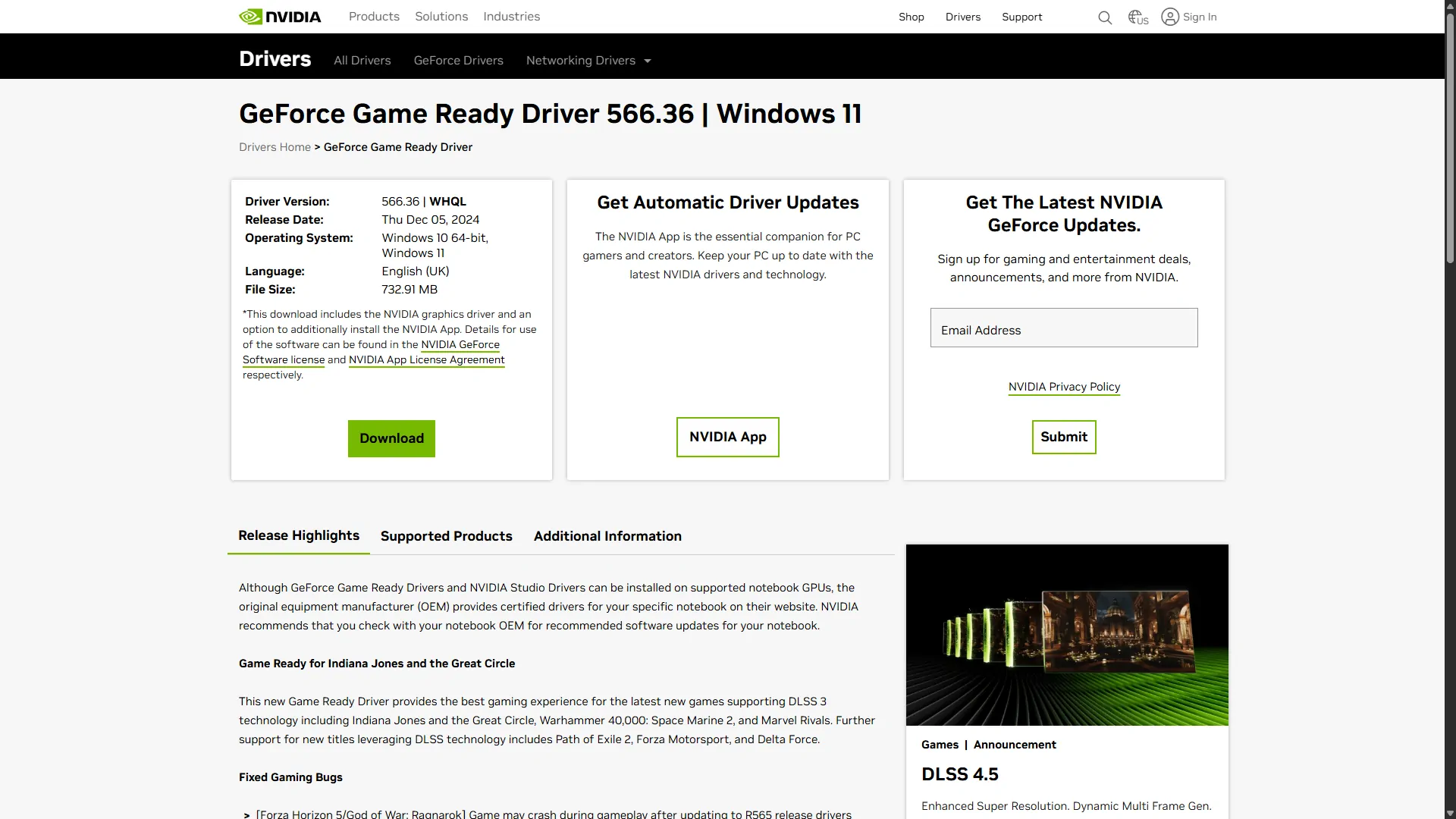
With 566.36 those headaches largely disappear. Frame pacing feels smooth and consistent, crashes become rare, and the driver maintains excellent compatibility with the games you already own. It doesn’t chase every new DLSS or ray-tracing tweak, but it gives you reliable performance you can trust session after session.
If you’re on an RTX 4090, 4080, 4070, or any 30-series card and you’re tired of chasing “fixed in the next driver” promises, this is the version that still delivers.
Download links
- Official details page: https://www.nvidia.com/en-us/drivers/details/237760/
- Direct download (Windows 10/11 64-bit): https://uk.download.nvidia.com/Windows/566.36/566.36-notebook-win10-win11-64bit-international-dch-whql.exe
(We’ll cover the exact rollback steps — including using DDU for a truly clean install — in the dedicated guide coming up next.)
The Most Stable AMD Driver Right Now: Adrenalin Edition 25.9.1
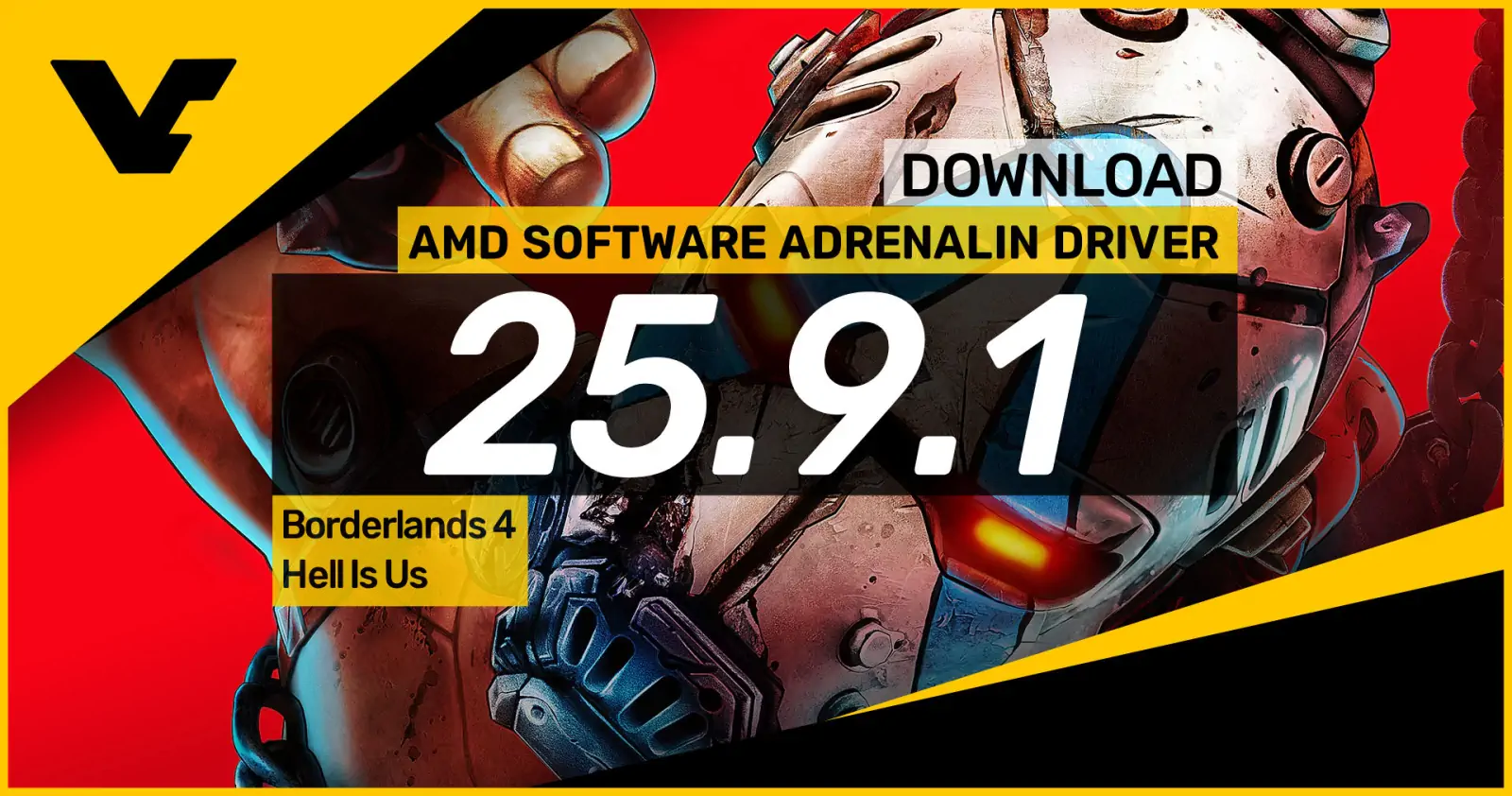
If you’re on an AMD GPU and you’ve grown tired of the cycle of “install new driver → game breaks → spend hours troubleshooting,” version 25.9.1 from September 2025 is the release the community keeps coming back to. Even in April 2026, with newer Adrenalin branches available, it’s still widely regarded as the most stable driver for RX 7000- and 8000-series cards.

Later releases introduced recurring headaches: driver timeouts, random crashes (especially in Unreal Engine titles), micro-stuttering, and inconsistent frame pacing that newer games seemed to trigger more often. 25.9.1 sidesteps those problems almost entirely. It delivers smooth, predictable performance you can rely on for long sessions without the random hiccups that force you to alt+F4 and restart. Frame times stay consistent, coil whine is minimized on many systems, and it simply gets out of the way so you can play.
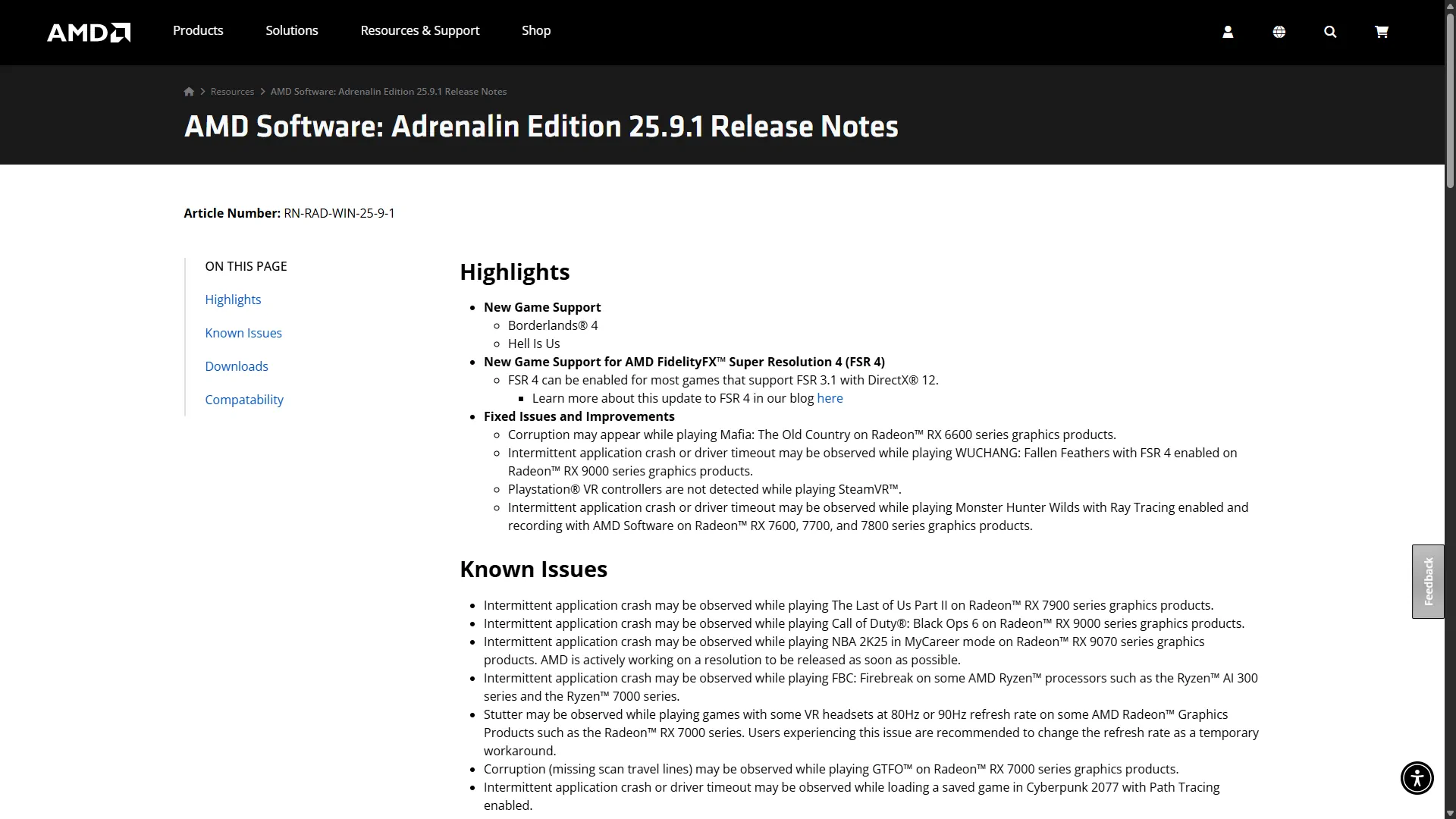
It’s not the driver you choose if you absolutely need the absolute latest ray-tracing or FSR improvements, but for the vast majority of gamers who value rock-solid reliability over bleeding-edge features, this is the one that feels like a return to the “it just works” era.
Download links
- Release notes: https://www.amd.com/en/resources/support-articles/release-notes/RN-RAD-WIN-25-9-1.html
- Direct download (Windows 10/11 64-bit): https://drivers.amd.com/drivers/whql-amd-software-adrenalin-edition-25.9.1-win10-win11-sep-rdna.exe
How to Safely Roll Back to These Stable Drivers (Step-by-Step Guide)
The cleanest way to switch drivers and avoid leftover files causing conflicts is to use Display Driver Uninstaller (DDU). It completely removes every trace of the current driver before you install the stable one.
What you’ll need
- Display Driver Uninstaller (DDU) → https://www.guru3d.com/files-details/display-driver-uninstaller-download.html
- The stable driver file you chose (NVIDIA 566.36 or AMD 25.9.1)
Step-by-step process
- Prepare your PC
Close every background program you can — especially Discord, Steam, GeForce Experience/Adrenalin overlays, browsers, and any monitoring tools. Also pause Windows Update temporarily to stop it from automatically reinstalling a newer driver (go to Settings → Windows Update → Advanced options → Device installation settings and select “No”). - Download everything
Grab DDU and the exact stable driver version you want. Save both to an easy-to-find folder. - Boot into Safe Mode (strongly recommended)
- Press Windows key + I to open Settings.
- Go to System → Recovery.
- Under “Advanced startup”, click Restart now.
- After reboot, choose Troubleshoot → Advanced options → Startup Settings → Restart.
- On the next screen, press 4 or F4 to start Windows 11 in Safe Mode.
(Alternatively, from the login screen you can hold Shift while clicking Restart.)
- Run DDU
Launch DDU as administrator. In the dropdown menus:
- Select device type: choose GPU
- Select device: choose NVIDIA, AMD, or Intel (whichever matches your graphics card)
Finally, click the Clean and restart button (highly recommended). Let it finish completely and your PC will reboot normally.
- Install the stable driver
Run the downloaded driver installer. Follow the on-screen instructions. Do not let Windows Update interfere during the process. - Final restart and verification
Reboot once more. Open NVIDIA Control Panel or AMD Adrenalin software and confirm the version is exactly the one you installed. You can also check in Device Manager under Display adapters.
That’s it. The whole process usually takes 10–15 minutes and gives you the cleanest possible installation.
Conclusion
New GPU drivers promise better performance and new features, but they often trade away the stability that matters most when you just want to play without frustration. That’s why, even in 2026, NVIDIA GeForce Game Ready 566.36 and AMD Adrenalin Edition 25.9.1 remain the two drivers that thousands of gamers trust above everything else.
If a fresh driver update causes stuttering, crashes, lower FPS, or blue screens, you now have a clear, reliable rollback path. Install the newest driver first if you want the latest optimizations, but keep these two versions ready — they’re the safety net that actually works.
Quick extra note for AMD RX 7600 owners
If you’re getting crashes or BSODs specifically in Final Fantasy VII Remake or Rebirth (often tied to Fluid Motion Frames in Unreal Engine games), many users have solved it by rolling back even further to Adrenalin 23.10.2. Full step-by-step fix here: How to Fix Final Fantasy 7 Rebirth Crashes on AMD Radeon RX 7600 GPUs
With this guide you no longer have to waste hours searching forums. Download the right driver, follow the steps, and get back to gaming with confidence.