
Learn how to install OptiScaler the easy way using OptiScaler Client. Set up FSR 4, XeSS, and Frame Generation in compatible games without manually copying DLL files.
How to Install OptiScaler Easily With OptiScaler Client
Here’s how to install OptiScaler without manually copying files or digging through game folders by using OptiScaler Client, a handy tool that automates the entire process.
If you’re always looking for extra performance in your PC games, you’ve probably heard of technologies like AMD FSR 4 or Intel XeSS. They promise smoother gameplay and higher frame rates without a major hit to image quality. The catch is that you’re completely dependent on game developers. If a studio never added support for modern upscalers, or you’re revisiting an older title, you’re simply out of luck.
That was exactly my situation. On one of my PCs, I use a Radeon RX 7600, and while AMD now lets you force FSR 4 in certain games through its drivers, there’s an important limitation: the game must already include FSR 3.1 support. Unfortunately, many of the titles I wanted to revisit didn’t meet that requirement.
That’s when I decided to try OptiScaler. I’d heard great things about it, but my first attempt at installing it manually wasn’t exactly enjoyable. Copying the correct DLL files into the right game folder, renaming files depending on the version, and making sure everything was placed correctly isn’t particularly difficult, but it’s easy to make a small mistake that prevents the mod from working altogether.
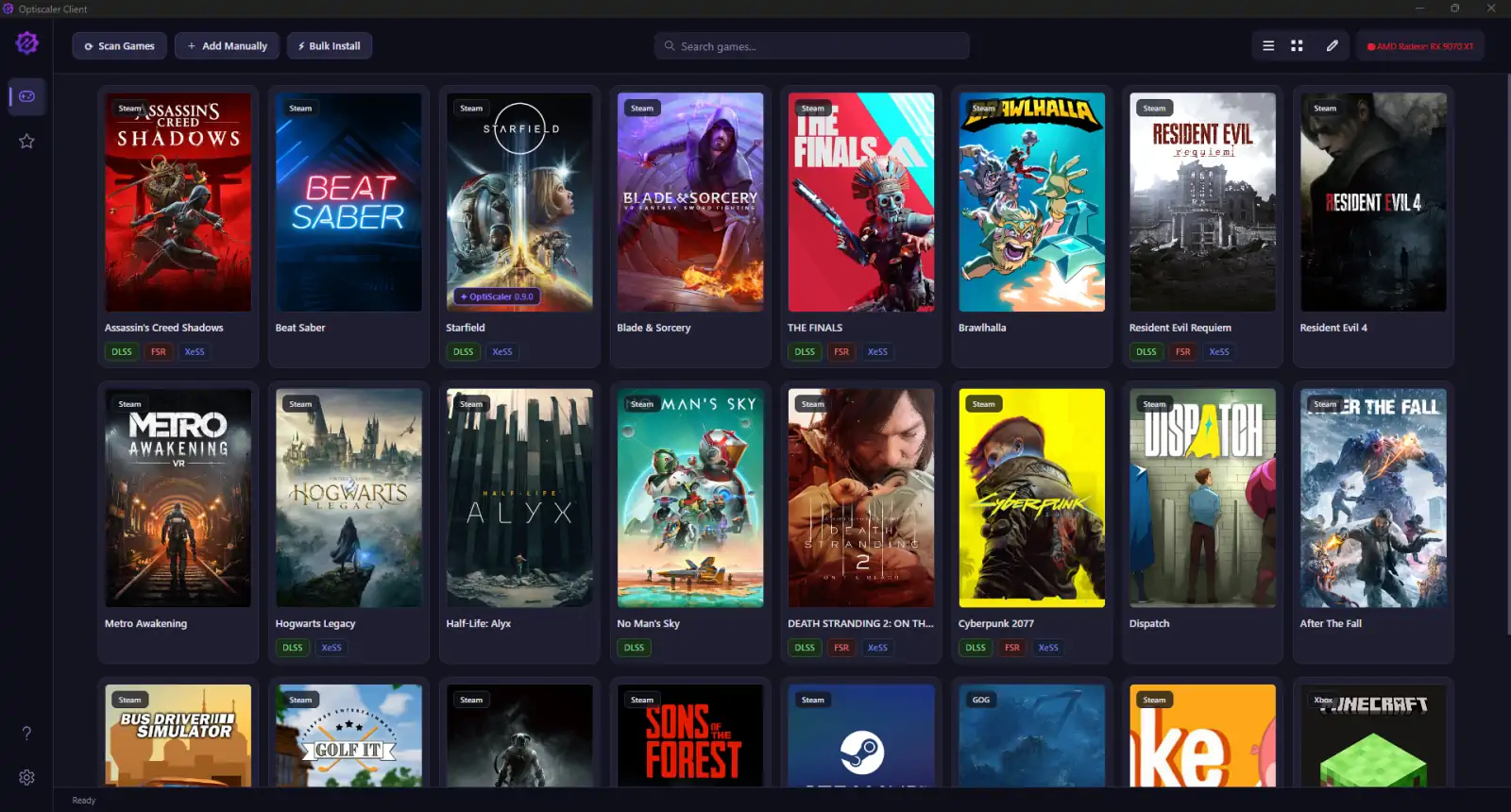
Everything changed once I discovered OptiScaler Client. Instead of manually managing files, it automatically detects your installed games and lets you install, update, or remove OptiScaler with just a few clicks. After testing it across several games, it’s easily the simplest and cleanest way to get started with OptiScaler.
Where to Find Retro Game ROMs & ISOs? 9 Safe & Best Sites (2026)
What Is OptiScaler?
OptiScaler is a free, open-source compatibility layer that acts as a bridge between different AI upscaling technologies. In simple terms, it can replace the upscaler already built into a game, whether that’s DLSS, FSR 2, or XeSS, with another one of your choice, including FSR 4.
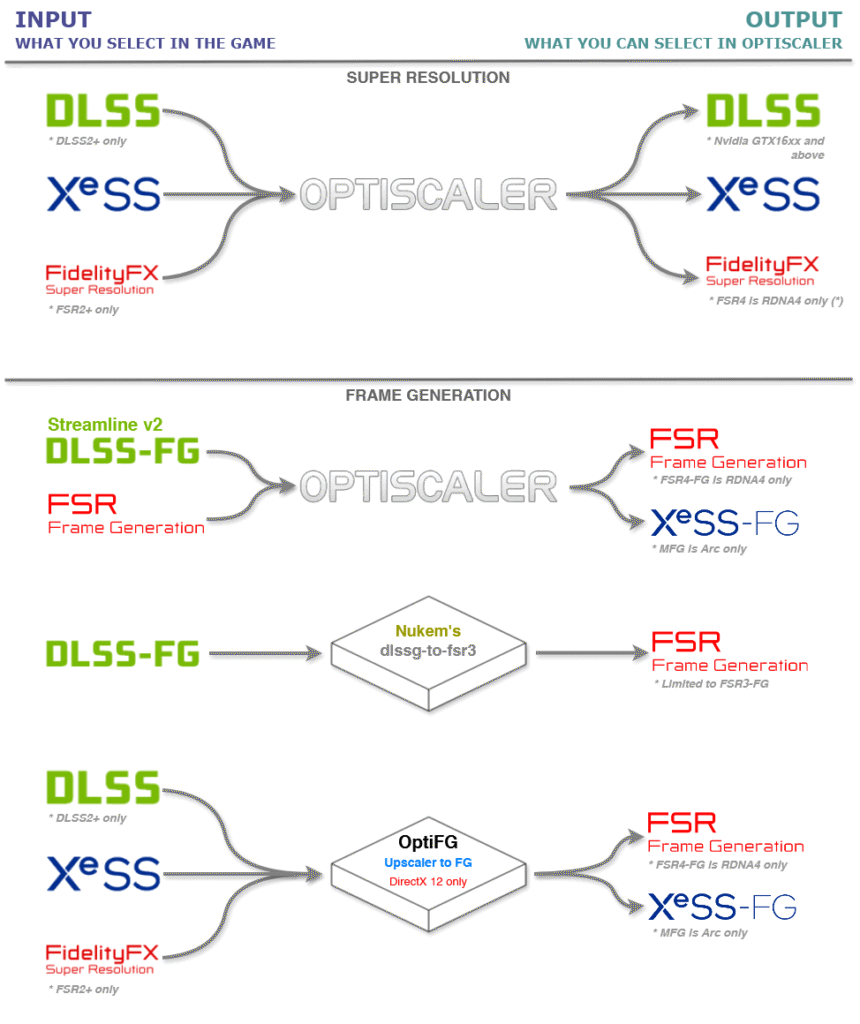
It can also enable frame generation in games that don’t officially support it. Another major advantage is that it works across GPU vendors, making it compatible with AMD, NVIDIA, and Intel graphics cards.
What Is OptiScaler Client?
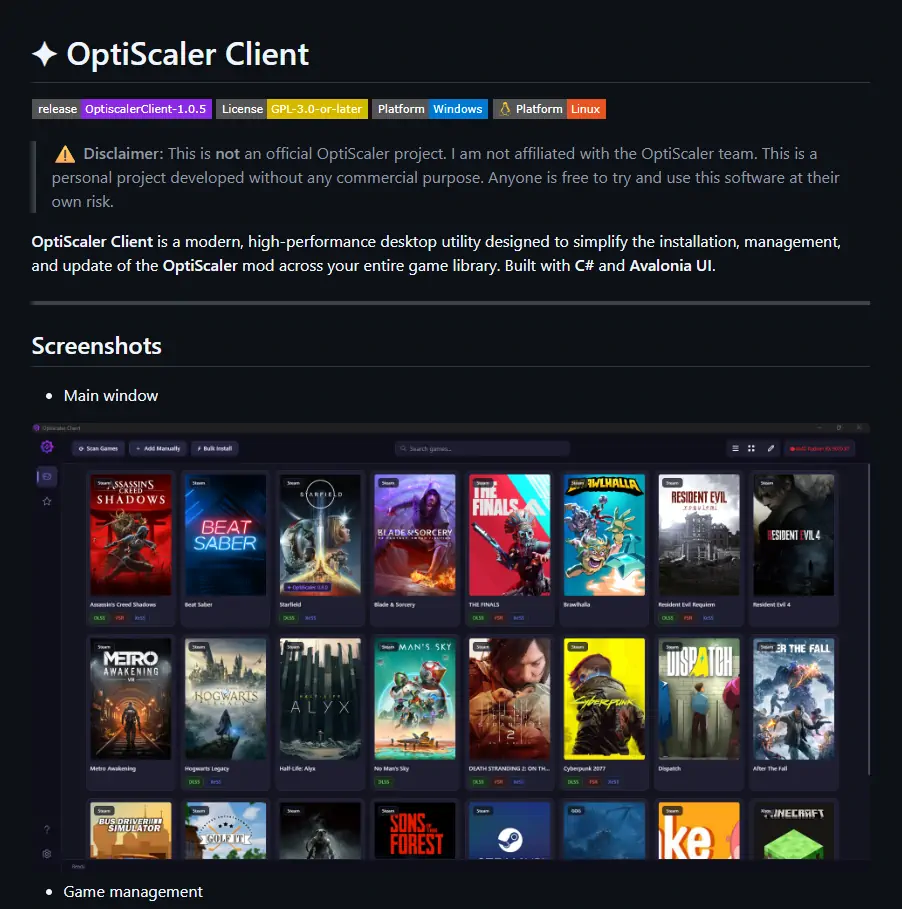
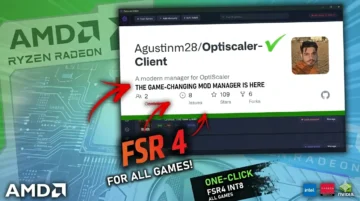
OptiScaler Client is an unofficial companion application developed by an independent programmer to make OptiScaler much easier to use.
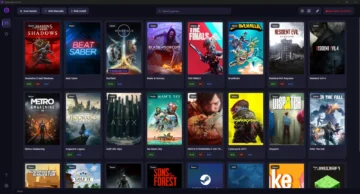
Instead of manually copying files into every game directory, the application scans your installed libraries across Steam, Epic Games Store, GOG, Xbox/Microsoft Store, and other supported launchers. It then displays all detected games in a clean interface, allowing you to install, update, or uninstall OptiScaler with a couple of clicks.
For most users, this completely eliminates the most common source of installation errors: placing the wrong files in the wrong folder.
What Your Game Needs Before Installing OptiScaler
Before getting started, it’s important to understand one limitation: OptiScaler doesn’t add upscaling support from scratch. Instead, it replaces an upscaler that the game already includes.
That means the game must support at least one of the following technologies:
- NVIDIA DLSS
- AMD FSR 2
- Intel XeSS
It doesn’t matter which one is available. OptiScaler uses it as the input and replaces it with whichever upscaler you choose, including FSR 4.
This is especially useful if you own an AMD or Intel GPU and a game only offers DLSS support. Normally that option would be unavailable, but OptiScaler removes that limitation, letting you take advantage of modern upscaling features regardless of your graphics card.
How to Download and Install OptiScaler Client
The easiest way to get started is by downloading OptiScaler Client from its official GitHub repository. Unlike the traditional manual installation, there’s no need to edit Windows settings, move DLL files around, or install additional dependencies.
Here’s how to set it up:
- Visit the OptiScaler Client GitHub Releases page and download the latest available ZIP file.
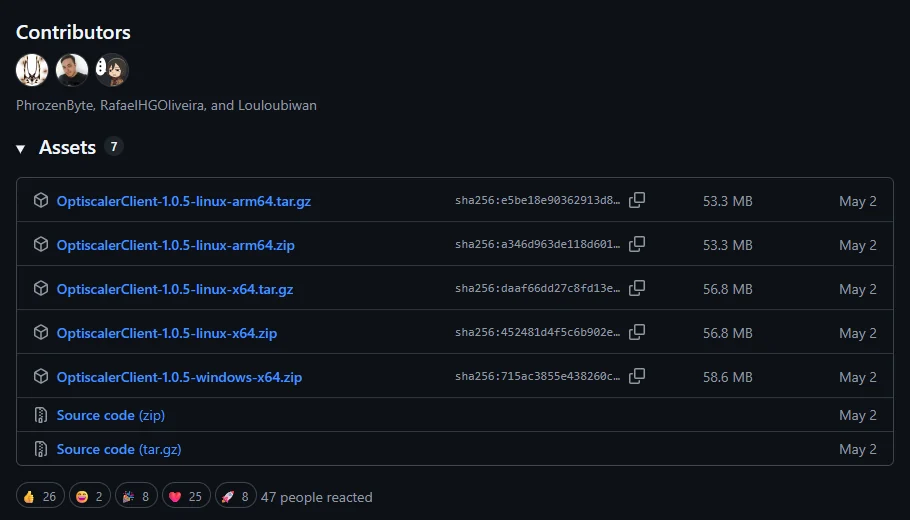
- Create a dedicated folder for the application, such as
C:\OptiScalerClient(or any location you prefer). - Extract the contents of the ZIP archive into that folder.
- Launch OptiScalerClient.exe.
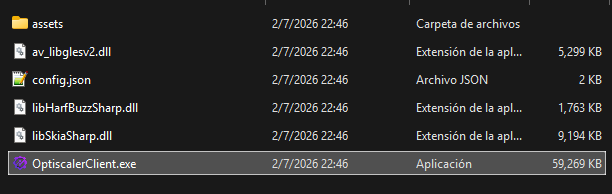
That’s it. The application is completely portable, so there’s nothing else to install.
The first time you open it, OptiScaler Client will automatically scan your PC for supported games across Steam, Epic Games Store, GOG, Xbox/Microsoft Store, and other compatible launchers. Once the scan finishes, your detected games will appear as cover art on the main screen, ready for installation.
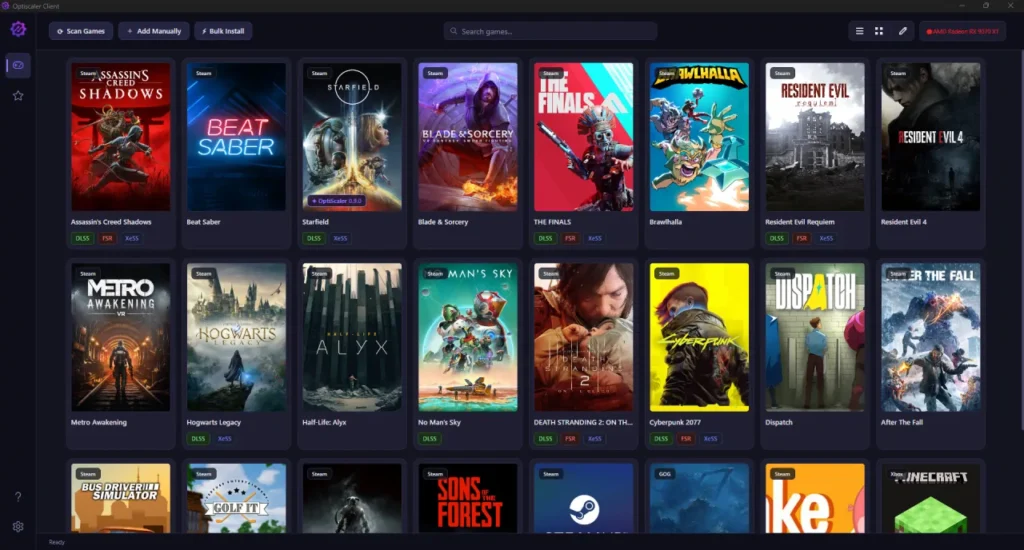
Installing OptiScaler for a Specific Game
Once your game library has been scanned, installing OptiScaler takes only a few clicks.
Hover over any detected game and you’ll see two available options:

- Quick Install automatically installs OptiScaler using a recommended configuration that works well for most games.
- Manage opens the advanced configuration panel, allowing you to manually choose the OptiScaler version, the upscaler you want to use (such as FSR 4), and other game-specific settings.
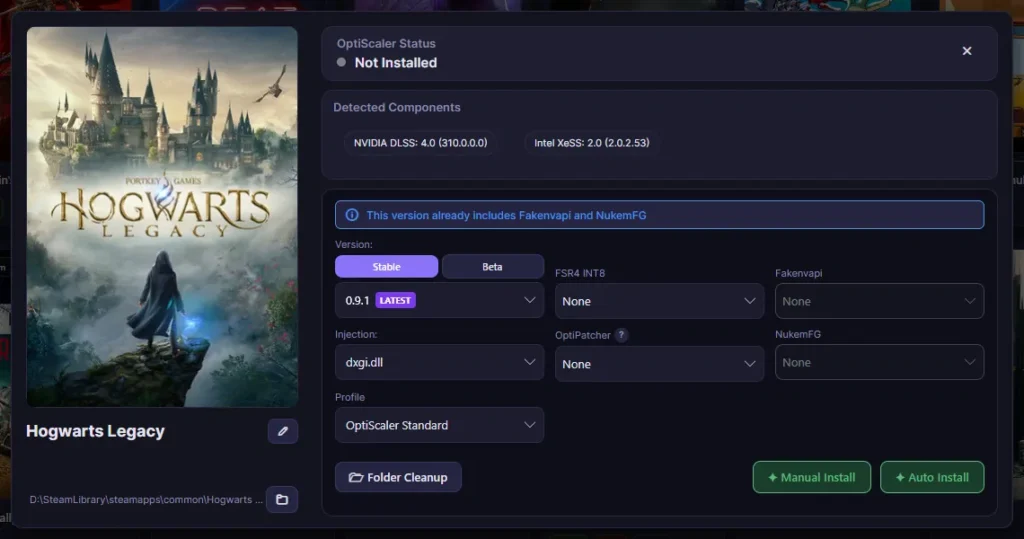
In my experience, Quick Install worked perfectly for almost every title I tested. It’s the option I’d recommend for most users, while Manage is better suited for those who already know exactly which configuration or OptiScaler version they need.
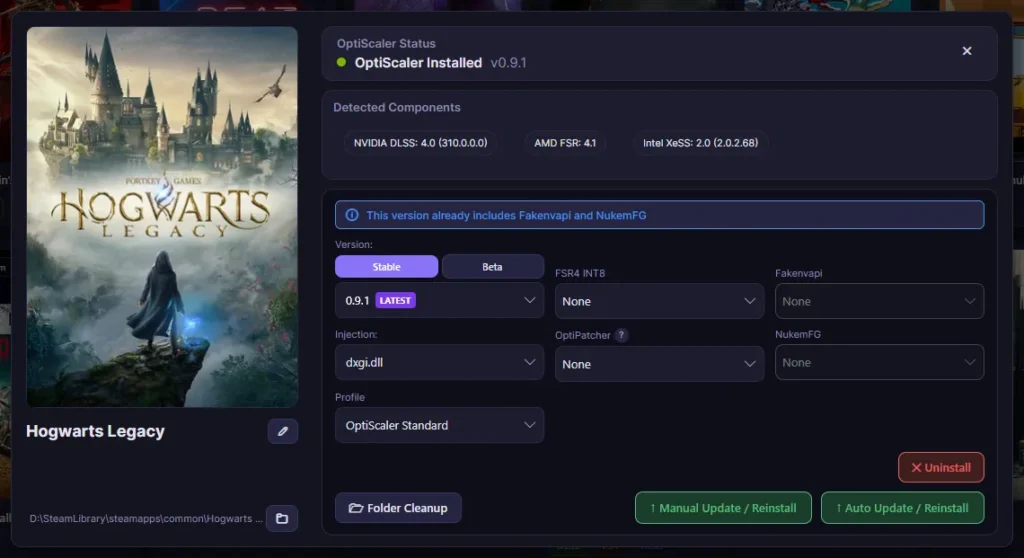
If one of your games isn’t detected during the initial scan, don’t worry. You can manually add it by pointing OptiScaler Client to the game’s executable file.
How to Enable and Use OptiScaler In-Game
After installing the mod, the final setup happens inside the game itself. This is also the step that tends to confuse first-time users, so it’s worth following the correct order.
- Launch the game and open its Graphics settings.
- Enable the game’s built-in upscaling technology, whether that’s DLSS, FSR 2, or XeSS.This step is mandatory. OptiScaler doesn’t create an upscaler from scratch. Instead, it intercepts the one already implemented by the game and replaces it with your preferred option.
- Press the Insert key to open the OptiScaler overlay.
- Select the upscaler you’d like to use instead, such as FSR 3.1, FSR 4, or XeSS.
- If the game supports it, you can also enable Frame Generation directly from the OptiScaler menu.
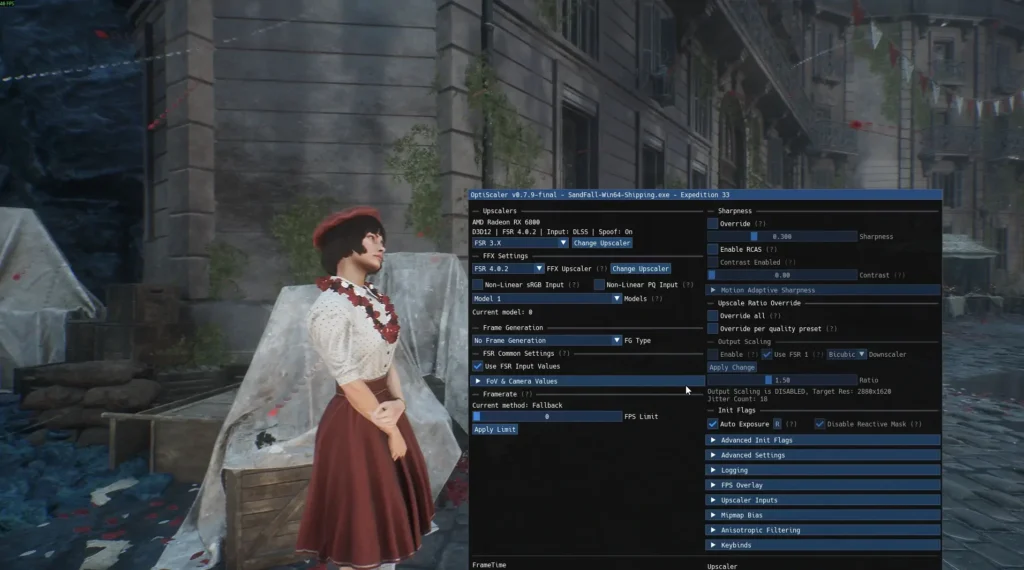
One mistake I see people make is trying to open the overlay before enabling the game’s native upscaler. If DLSS, FSR 2, or XeSS isn’t already active, OptiScaler has nothing to hook into, so the overlay may not display the options you’re expecting. Turn on the original upscaler first, then everything else falls into place.
A Few Things Worth Knowing
After testing OptiScaler across several games, I came across a few practical tips that are worth keeping in mind before installing it throughout your library:
- If a game isn’t detected during the initial scan, you can add it manually by selecting its executable file.
- Updating, uninstalling, or switching OptiScaler versions can all be done from the same interface with just a few clicks. There’s no need to manually edit folders or replace files.
- Since OptiScaler modifies game files, it’s not recommended for online multiplayer games that use anti-cheat systems, as doing so could trigger integrity checks or other restrictions.
It’s also worth explaining why I ended up using OptiScaler instead of relying solely on AMD’s official driver support.
AMD has gradually expanded FSR 4.1 compatibility to the Radeon RX 7000 series, including my own RX 7600. However, there’s an important limitation: the driver can only replace FSR 3.1 with FSR 4.1 if the game already includes FSR 3.1 natively. If a game only supports DLSS or FSR 2, that upgrade path simply isn’t available.
OptiScaler doesn’t have that restriction. It can hook into DLSS, FSR 2, or XeSS and replace them with FSR 3.1, FSR 4, XeSS, or even enable Frame Generation, regardless of which upscaler the game originally shipped with.
What You Can Expect From OptiScaler
I haven’t had time to test dozens of games yet, but one title in particular gave me a very good idea of what OptiScaler is capable of: Clair Obscur: Expedition 33.
My first test was on an Radeon RX 7600 using an older version of the game that only offered DLSS, Intel XeSS, and TSR as native upscaling options.
Without OptiScaler, performance hovered around 60 FPS at 1080p, but both XeSS and TSR produced a somewhat rough-looking image with noticeable aliasing and shimmer.
After installing OptiScaler and switching to FSR 4 (Quality mode), the improvement was immediately visible. Image noise was significantly reduced, edges looked much cleaner, and overall image quality took a noticeable step forward. While I wouldn’t say it quite matched the latest official DLSS implementations, it was clearly superior to FSR 3.1. Performance also improved, and in some scenes the image actually looked better than native 1080p, although that’s naturally a subjective impression.
Later, after AMD released its June 2026 Radeon drivers, which added official FSR 4.1 support for RX 7000 GPUs, I repeated the comparison.
This time I used the latest version of the game, which already includes FSR 3.1 natively, allowing the Radeon driver to upgrade it automatically to FSR 4.1.
The difference compared to OptiScaler’s implementation was surprisingly small. The official driver delivered slightly higher frame rates and a bit more detail in fine elements like grass, which is exactly what you’d expect from AMD’s native implementation. Even so, OptiScaler’s version of FSR 4 remained remarkably close in overall image quality and performance.
Based on my experience, my recommendation is fairly straightforward:
- If you own an RX 7000 or RX 9000 GPU, the latest official Radeon drivers are the best option whenever they’re supported, since they provide the most polished and stable experience.
- If you’re using an RX 6000 series card, an older GPU, or a game that isn’t officially supported, OptiScaler remains an excellent alternative, offering multiple upscalers along with Frame Generation in many compatible titles.
The Easiest Way to Get Started With OptiScaler
Installing OptiScaler manually has never been particularly difficult, but it’s the kind of process where copying a single file to the wrong folder can prevent a game from launching altogether.
OptiScaler Client removes almost all of that friction. Instead of dealing with DLL files and game directories, you install, update, or remove the mod from a single interface in just a few clicks.
If your GPU doesn’t officially support the latest upscaling technologies, or you’re trying to improve games that your graphics driver can’t enhance on its own, OptiScaler Client is by far the simplest and most user-friendly way to unlock those features without the usual manual setup.