
I tested the best ways to download YouTube videos on Windows, Mac, Android, and in your browser. Here are the tools that work, without the junk apps or hidden limits.
I Tested These YouTube Video Downloaders. Here Are the Ones That Actually Work
Sooner or later, it happens to everyone: You find a video you want to save, whether it’s a tutorial, a lecture, or something you know you’ll need offline. Then you realize YouTube doesn’t offer a straightforward way to download it to your device. YouTube Premium lets you download videos for offline viewing, but those downloads stay inside the YouTube app.
There are other options, but finding a good one can be frustrating. Search for “download YouTube videos” and you’ll run into copycat websites loaded with ads, browser extensions that stopped working months ago, and desktop apps that promise more than they deliver. Figuring out which tools are worth your time takes hands-on testing, not another generic list copied from somewhere else.
That’s what I did. Below, I’ve rounded up the tools I tested personally, covering both PC and Android. They’re ranked from most to least recommended based on reliability, popularity, and ease of use.
One important note before we begin: This guide is for informational purposes only. Downloading copyrighted material without the rights holder’s permission may violate YouTube’s Terms of Service and, depending on the circumstances, applicable copyright laws. I recommend using these tools only for your own videos, openly licensed content, or material you have explicit permission to download.
How to Convert YouTube to MP3 Safely (Free Tools & Best Methods)
YouTube Video Downloaders Compared
| Tool | Platform | Type | Free? |
|---|---|---|---|
| yt-dlp (CLI) | Windows, macOS, Linux | Command-line tool | Yes, no limits |
| Open Video Downloader | Windows, macOS, Linux | Desktop app | Yes, no limits |
| Seal | Android | App | Yes, no limits |
| Stacher | Windows, macOS, Linux | Desktop app | Yes, no limits |
| YDL GUI | Windows | Desktop app | Yes, no limits |
| LibreTube | Android | YouTube frontend with built-in downloads | Yes, no limits |
| Video DownloadHelper | Firefox, Edge | Browser extension | Yes, no limits |
| Parabolic | Linux, Windows, macOS | Desktop app | Yes, no limits |
| ytdlp.online | Any browser | Web-based tool | Yes, no limits |
| ClipGrab | Windows, macOS, Linux | Desktop app | Yes, no limits |
| 4K Video Downloader Plus | Windows, macOS, Linux | Desktop app | Yes, limited to 10 downloads per day |
| Shutter Encoder | Windows, macOS, Linux | Desktop app | Yes, no limits |
The YouTube Downloaders That Actually Work
I didn’t put this guide together by simply collecting information from other websites. I tested every tool on this list using the same reference video: Big Buck Bunny 60fps 4K – Official Blender Foundation Short Film. You can watch it on YouTube. The video is published under the Creative Commons Attribution 3.0 license, which allows it to be downloaded and reused under the license’s terms.
Using the same video for every test made it easier to compare the results on a consistent basis, including the available resolutions, file sizes, and format options. Each entry below explains how the tool works, what you need to know before using it, and what I thought of it based on my own experience.
1. yt-dlp (CLI)
The most powerful option for downloading videos without limits
If I had to recommend just one tool for downloading YouTube videos, it would be yt-dlp. This free, open-source command-line tool is a successor to the popular youtube-dl project. It’s fast, reliable, and updated regularly to keep up with changes YouTube makes to its platform.
Unlike many desktop apps and online downloaders, yt-dlp doesn’t impose artificial limits on video resolution, length, or the number of downloads. It can also save videos at the highest quality available.
How to install yt-dlp on Windows
The easiest way to install it on Windows 11 is to open PowerShell as an administrator and run this command:
winget install -e --id yt-dlp.yt-dlpIn my tests, I didn’t need to install anything else manually. The command installs yt-dlp and automatically downloads FFmpeg and Deno, two components the tool needs to work properly.
Once the installation is complete, you can close the PowerShell window.
How to download a video
Open a regular PowerShell window (you no longer need administrator privileges) and run this command:
yt-dlp -P "<download_folder>" "<video_url>"Replace the following placeholders:
<download_folder>with the folder where you want to save the video, such asC:\Videos.<video_url>with the YouTube video’s URL.
For example:
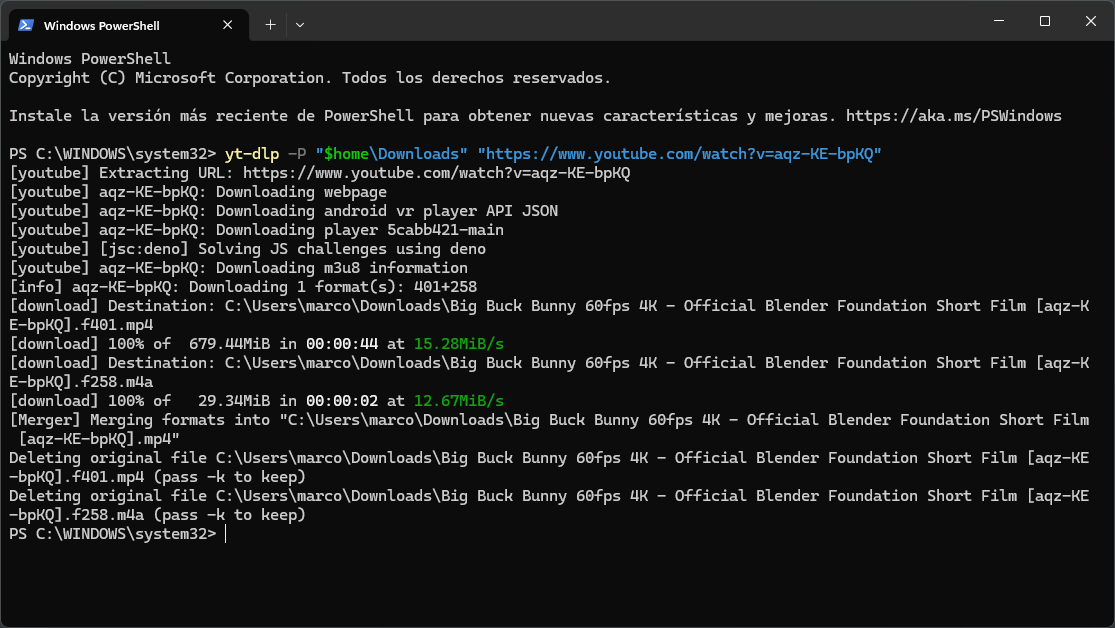
yt-dlp -P "C:\Videos" "https://www.youtube.com/watch?v=aqz-KE-bpKQ"In my test, this command downloaded Big Buck Bunny 60fps 4K – Official Blender Foundation Short Film at its maximum available quality (4K at 60 fps) in just a couple of minutes. The file was saved correctly to the folder I specified.
The best part is that you don’t have to specify the video quality manually. yt-dlp automatically selects the best available version and, with the help of FFmpeg, merges the video and audio streams when necessary.
Available for: Windows, macOS, and Linux.
My verdict: After testing several alternatives, yt-dlp remains my top recommendation. It works reliably, receives frequent updates, and rarely stays broken for long when YouTube changes something. If you’re comfortable entering a command in the terminal, it’s probably the best option for downloading YouTube videos. If you’d rather use a graphical interface, several desktop apps use yt-dlp as their underlying engine.
- Pros: Free and open source; downloads videos at the highest available quality; no limits on resolution, video length, or download count.
- Cons: Requires the command line, which can be intimidating if you’re not familiar with PowerShell or the terminal.
2. Open Video Downloader
All the power of yt-dlp, without typing a single command
Open Video Downloader is a free, open-source graphical interface for yt-dlp. It gives you access to the same powerful download engine without the artificial restrictions or ads found in some competing apps. Because the software is open source, it doesn’t lock features behind a paywall. You can download video with audio, extract audio only, or save video without audio, and choose the resolution before starting a download.
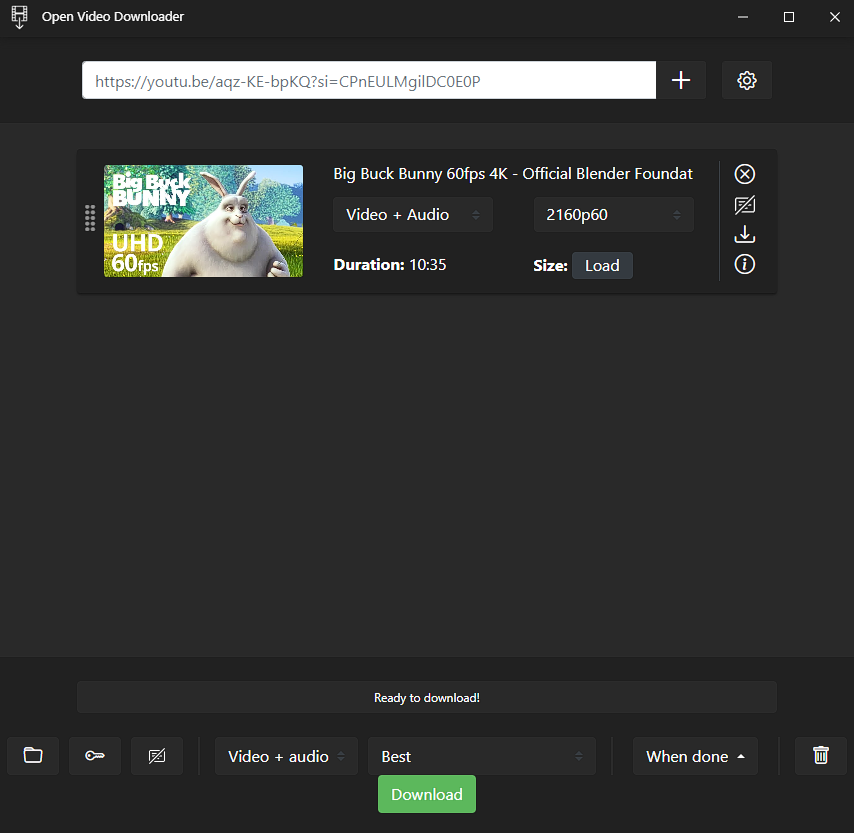
Using it is straightforward: paste the video URL into the search bar and click the + button next to it. The app analyzes the video and adds it to the download queue. From there, select your preferred resolution and click Download. There are no hidden menus or complicated steps to learn.
One of its biggest advantages is that it can handle more than individual videos. It also supports entire playlists. In my tests, I pasted the URL of a lengthy playlist featuring the soundtrack of a classic anime, and the app analyzed the playlist and loaded its contents in just a few seconds. After I selected the audio-only option, it automatically processed and converted each track to MP3 with a single click. It’s a good example of how Open Video Downloader puts yt-dlp’s capabilities within reach without making things unnecessarily complicated.
Available for: Windows, macOS, and Linux.
My verdict: This is my favorite desktop app in this category. The interface is clean, simple, and intuitive, and its open-source nature makes it a compelling alternative to tools such as 4K Video Downloader Plus, which imposes usage limits on its free version. If you want a graphical alternative to yt-dlp without giving up its core capabilities, this is the first app I’d try.
- Pros: Intuitive interface; open source, with no built-in download limits.
- Cons: Because it depends on community updates, it can sometimes take longer than yt-dlp itself to adapt to changes on YouTube.
3. Seal
The most feature-packed YouTube downloader for Android
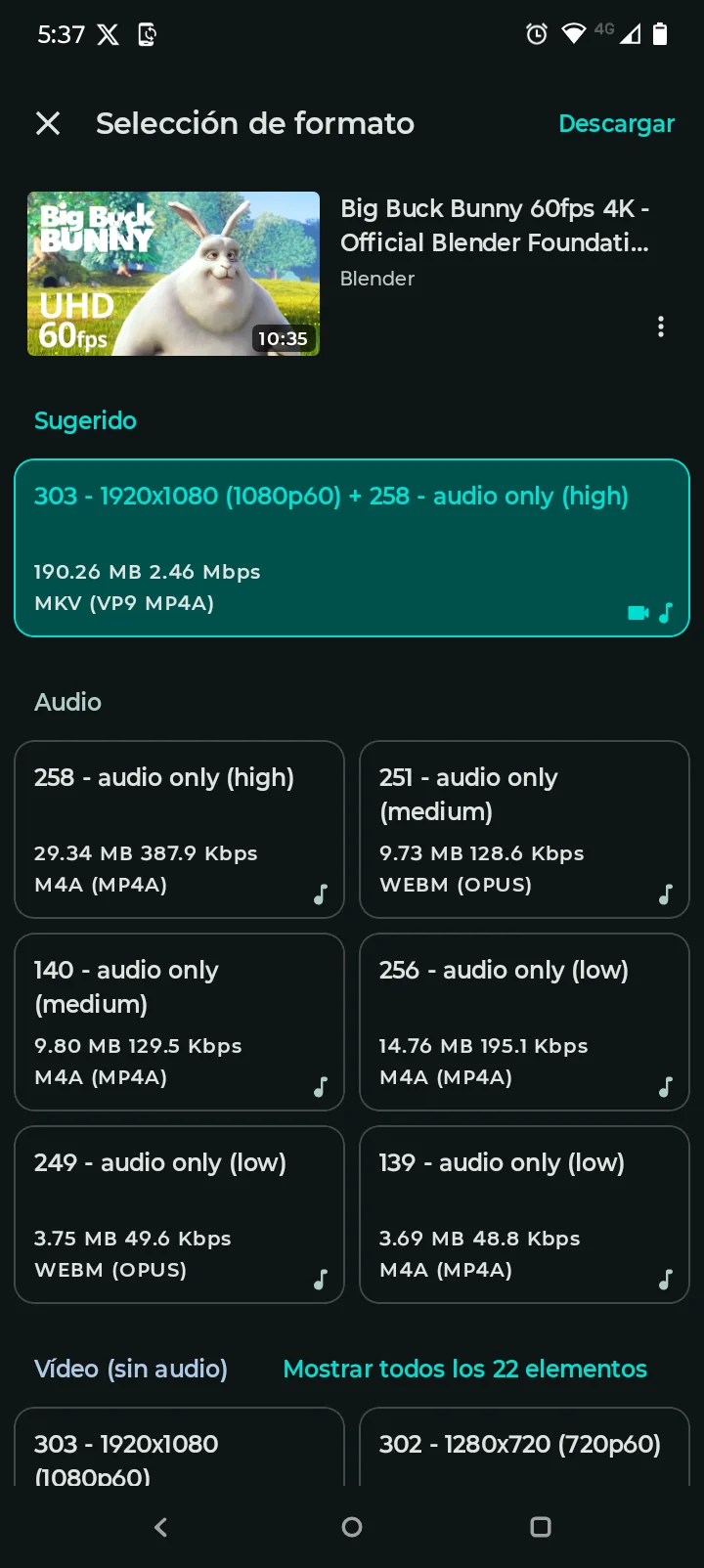
Seal is an open-source Android app built on yt-dlp. It’s designed for anyone who wants access to just about every download option without leaving their phone. It supports video and audio downloads in multiple formats, lets you choose the exact resolution, and offers the kind of detailed quality controls you’d expect from advanced desktop tools.
To use it, paste the video URL into the app’s search box and tap Download. Seal analyzes the video, which can take a few seconds depending on your connection, then displays the available options in categories. A recommended option appears at the top, with the remaining choices organized into groups such as audio and video without audio. In most cases, the suggested option is all you need. However, if you want Seal to always recommend the highest available resolution, go to Settings → Format → Video → Video quality and select Best quality.
Available on: Android.
My verdict: Seal is easily my favorite YouTube downloader for Android. It’s packed with features, handles both video and audio, and lets you set the default quality in Settings, which makes it especially convenient if you download videos regularly. It also works well for extracting MP3 audio from YouTube, so one app can handle both jobs.
- Pros: Extensive quality and format options; works well for extracting audio as MP3.
- Cons: Initial video analysis can take a few seconds, especially on slower connections.
👉 Official Seal repository on GitHub
4. Stacher
Paste a link and download, with no setup required
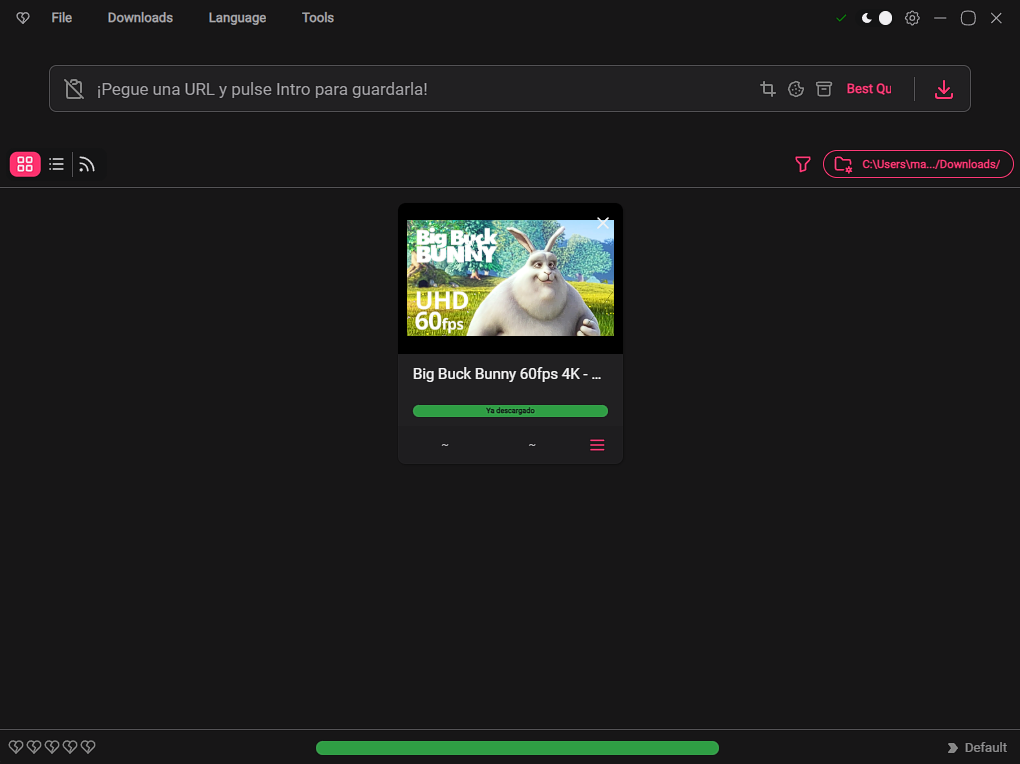
Stacher is another graphical interface built on yt-dlp, but it has one feature that sets it apart: during installation, it automatically detects and configures both yt-dlp and FFmpeg. There’s no need to set anything up before your first download. The workflow is straightforward: paste the link, choose a resolution or format such as MP4 or MP3, and click Download.
Stacher is available for Windows, macOS, and Linux, with a consistent experience across all three platforms. That makes it a convenient choice if you want something that works out of the box without a complicated installation process, while still benefiting from the reliability of yt-dlp under the hood.
Available on: Windows, macOS, and Linux.
My verdict: Stacher is one of the most straightforward tools on this list. Its interface centers on a single search box with the instructions “Paste a URL and press Enter,” so there’s very little room to get lost. That said, I find it a bit rough around the edges compared with other yt-dlp frontends. This is partly a matter of taste, of course. Some users will appreciate that same simplicity. If I were recommending it to a particular audience, Mac users who want a downloader that works without any initial setup would be a good fit.
- Pros: Automatically configures yt-dlp and FFmpeg; offers a consistent experience on Windows, macOS, and Linux.
- Cons: It’s newer than some alternatives and has a smaller community behind it.
5. YDL GUI (imsyy)
A modern alternative with more advanced controls
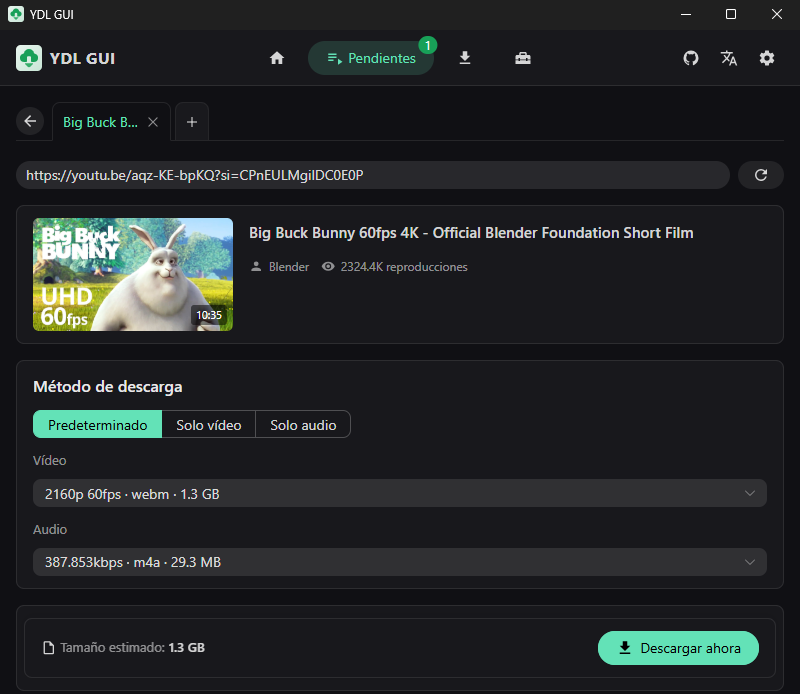
YDL GUI, developed by imsyy, is another graphical interface for yt-dlp. Unlike more basic options, it gives you a little more control over the download process. Along with standard features such as choosing video and audio quality separately and setting a download folder, it includes more advanced tools for trimming a video’s duration and converting files after downloading.
The first time you try to download something, the app may ask you to install yt-dlp. To do that, open Settings and click Download next to yt-dlp. You can optionally do the same for the Deno JS runtime listed just below it. Once everything is installed, everyday use is simple: paste the URL on the home screen, click Analyze, choose your video and audio quality, and then select Download now.
One thing to watch out for: the Windows 11 installer isn’t listed as the first option on the GitHub releases page. You’ll need to look through the files for one with a name similar to YDL.GUI_0.6.0_x64-setup.exe, among the builds for other platforms.
Available on: Windows, macOS, and Linux.
My verdict: I tested YDL GUI as an alternative to Open Video Downloader, and it performs well. Its extra features, particularly trimming and format conversion, are useful additions. The trade-off is that it takes a little longer to get started, and finding the correct installer on GitHub isn’t as straightforward as it should be. I’d recommend it to users who are comfortable with the basics and want more control without having to use the command line.
- Pros: Advanced features such as trimming and format conversion; modern interface with active development.
- Cons: Initial setup and finding the right installer are less intuitive than with some alternatives.
👉 Official YDL GUI repository on GitHub
6. LibreTube
A full-featured YouTube alternative with built-in downloads
LibreTube is much more than a video downloader. It’s an alternative YouTube frontend for Android, with an interface that looks a lot like the official mobile app, but without ads and with built-in download support. You don’t need to copy and paste video links, either. Just search for a video by name within the app, much as you would in YouTube itself.
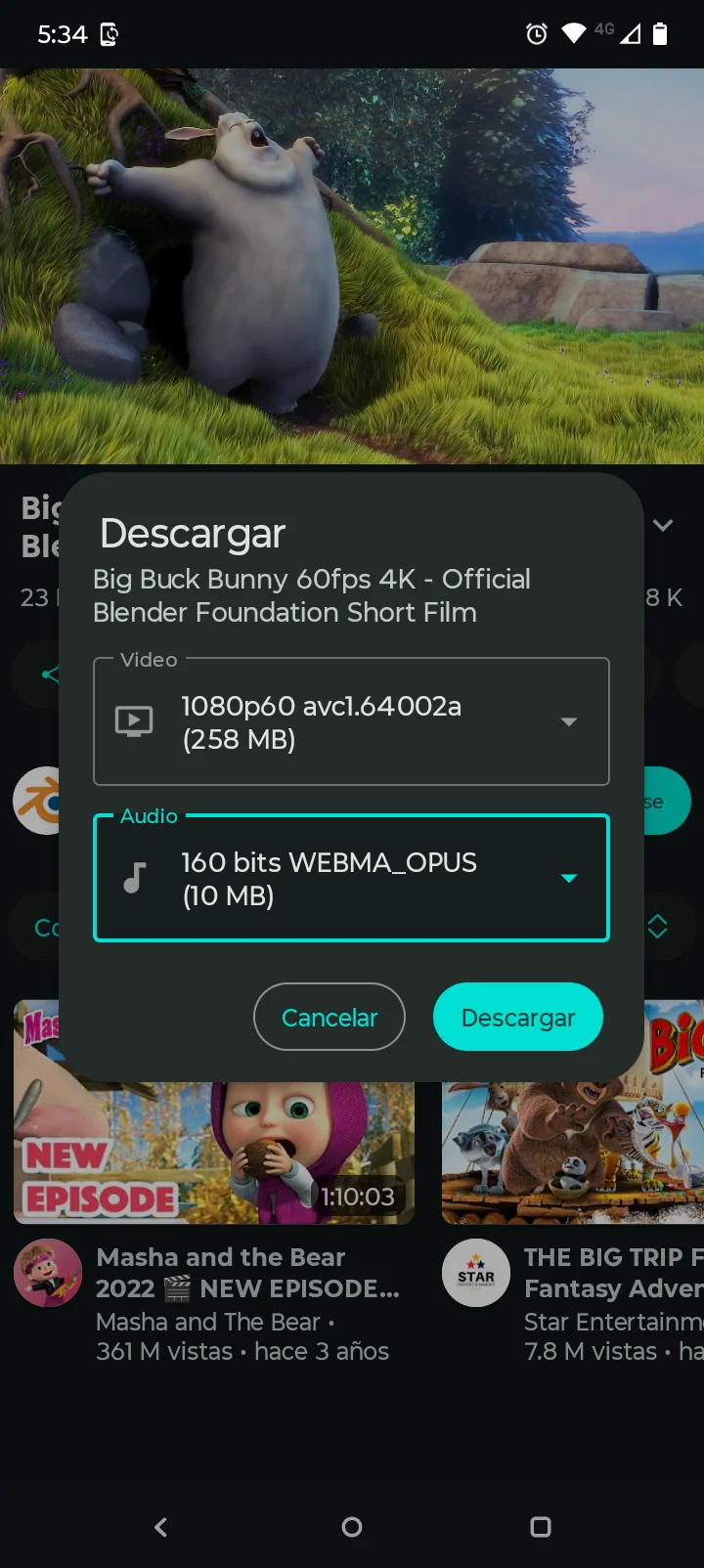
Once you open a video, you’ll see a Download button just below it. Tapping the button opens two separate menus: one for choosing the video’s quality and format, and another for audio. Make sure you select both options before confirming the download. The APK installer is less than 10 MB and can be downloaded directly from the project’s GitHub repository, since LibreTube isn’t available on the Play Store.

Available on: Android.
My verdict: For a long time, NewPipe would have been the obvious recommendation in this category. However, in my recent tests, it started running into problems. Some videos were blocked by prompts asking me to verify that I wasn’t a bot, while others didn’t offer any way to choose the download quality. LibreTube has since become my recommended alternative to NewPipe, with the added benefit of a more polished, intuitive interface.
Keep in mind that performance can vary over time. Apps like these rely on external servers, which can occasionally experience outages, blocks, or heavy traffic.
- Pros: No need to copy and paste URLs; browse videos much as you would in YouTube; very small installer.
- Cons: Performance can vary depending on the availability and load of external servers.
👉 Official LibreTube repository on GitHub
7. Video DownloadHelper
Download videos directly from your browser
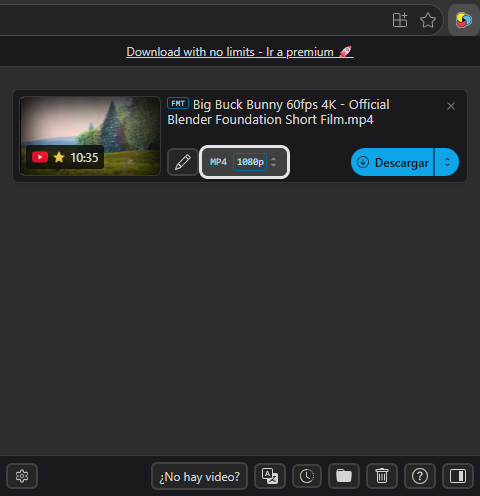
Video DownloadHelper is a browser extension for Firefox and Edge that lets you download YouTube videos without copying links or opening a separate app. Once it’s installed, open a video on YouTube and let it play for a few seconds. When the extension detects the video, its icon changes from gray to color, indicating that the content is ready to download.
Click the extension icon to open a window with the available download options. From there, you can choose a format, such as MP4 or WebM, and select the resolution before clicking Download. In my tests, the process was quick and worked without any issues in both Edge and Firefox.
If you don’t see the extension icon next to your address bar after installing it, it’s probably just hidden. In Edge or Firefox, open the Extensions menu, find Video DownloadHelper, and click the pin icon to keep it visible in the browser toolbar. This step is worth taking because the toolbar icon is how you access the download options.
There’s one important catch: Video DownloadHelper doesn’t work in Chrome. If you use Edge or Firefox, install the extension from that browser’s official add-on store. I initially installed it from the Chrome Web Store, where it didn’t work. After removing it and installing the official version from the Edge Add-ons store, everything worked as expected.
Available on: Firefox and Edge (not Chrome).
My verdict: This is one of the most convenient options if Firefox or Edge is your main browser, since you can download videos without leaving the tab. The biggest drawback is that it doesn’t work in Chrome, so many users will need to choose another method.
- Pros: Downloads videos directly from the browser without copying links; lets you choose the format and resolution before downloading.
- Cons: Doesn’t work in Chrome; must be installed from the official Firefox or Edge extension store.
👉 Official Video DownloadHelper website
8. Parabolic
The fully open-source choice for Linux
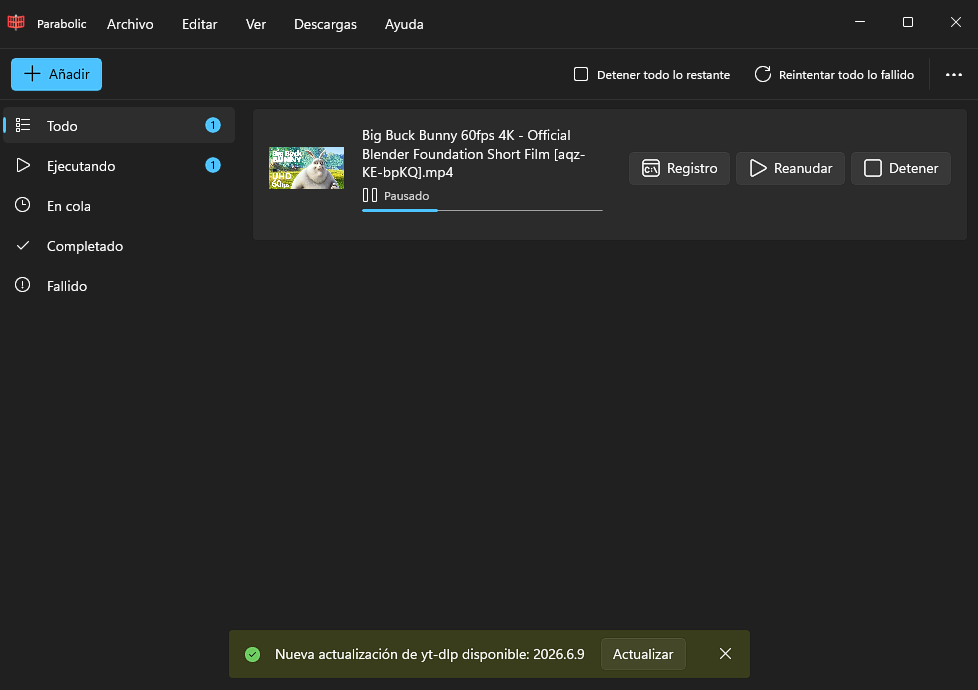
Parabolic is another graphical interface built on yt-dlp. It’s particularly well regarded in the Reddit community for being fully open source and lightweight. It lets you download videos at the highest available quality, manage multiple downloads at once, and choose the output format, all through an interface designed to fit naturally into Linux desktops, especially GNOME.
Packages are also available for Windows and macOS, but Parabolic’s development has historically focused more on Linux, and that shows. On macOS, installation and setup can require more technical know-how than with Stacher, which was designed from the outset to provide a consistent experience across all three operating systems.
Available on: Linux, Windows, and macOS (easiest to install on Linux).
My verdict: The first thing I noticed was how well organized the interface is. It’s clean, intuitive, and easy to use right away. One especially useful feature is that the app notifies you when a new version of yt-dlp is available, making it easier to stay up to date than with some alternatives.
I still prefer Open Video Downloader on PC, but if I had to pick a runner-up, Parabolic would be my choice. Of all the yt-dlp frontends I’ve tested, it has the best-organized and most intuitive interface, even better than Stacher’s. If you’re using Linux, it would be my first recommendation.
- Pros: Fully open source and lightweight; excellent performance on Linux.
- Cons: Installation on macOS is less straightforward than with Stacher.
👉 Official Parabolic repository on GitHub
9. ytdlp.online
The only online downloader I’d recommend
Before getting to this option, it’s worth being honest about the rest of the landscape. Most online downloaders, such as Y2Mate and YTDown, are ad-heavy clone sites filled with aggressive pop-ups and links that sometimes lead to unwanted software. Search for these names on Google, and you’ll find dozens of nearly identical copies, none of which inspire much confidence. Cobalt Tools, once a reliable alternative, stopped supporting YouTube video downloads specifically, although it still works with other platforms.
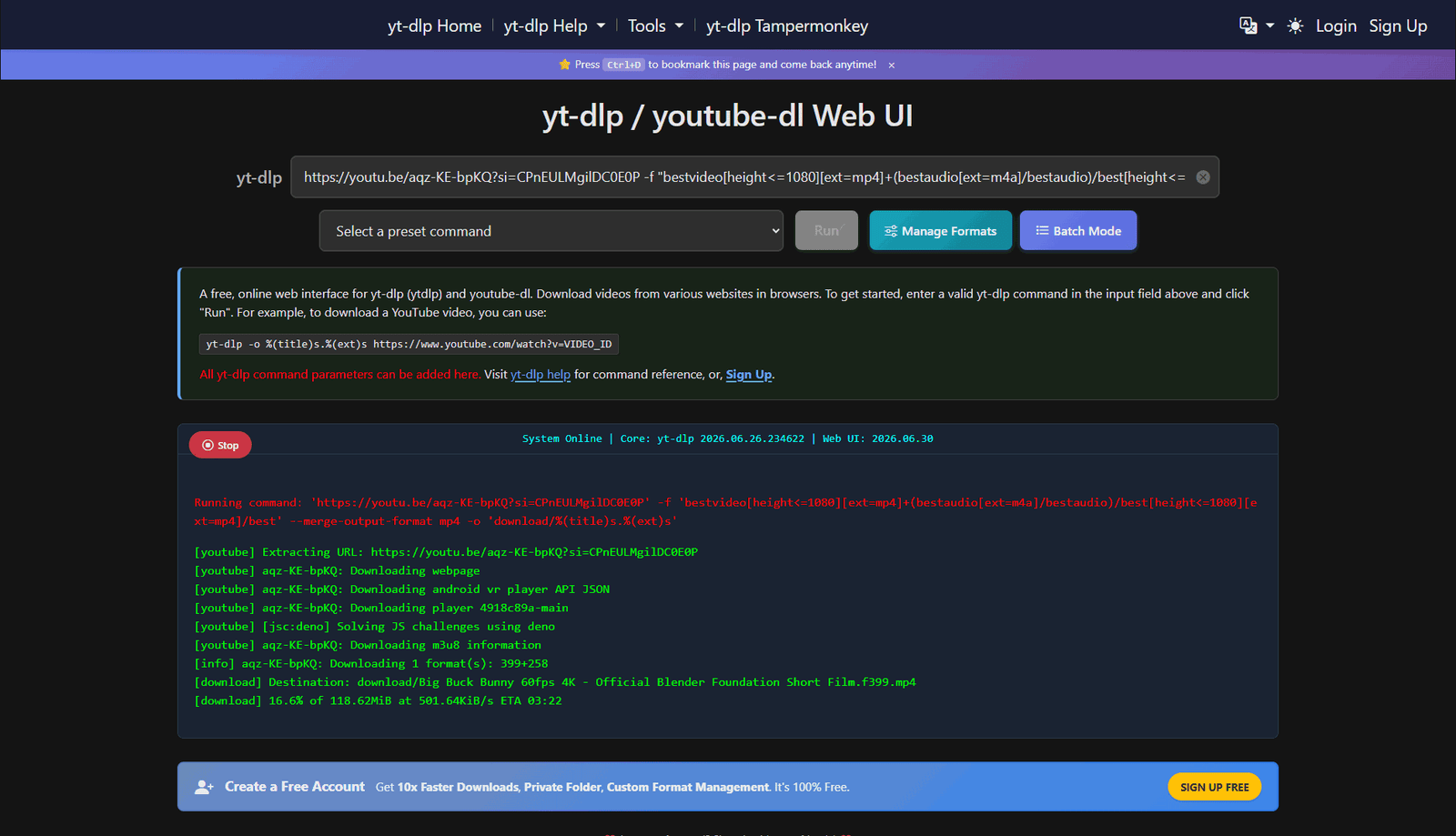
ytdlp.online takes a different approach. It’s a web-based service that runs yt-dlp on its own server, so you don’t need to install anything on your device. To use it, paste the video URL, choose a preset command from the dropdown menu, such as Best quality, 1080p mp4, or Extract audio (mp3), and click Run. The site automatically inserts the full yt-dlp command alongside the link and opens a window showing the task in progress. After a few minutes, you’ll see a “Command execution completed” message and a button to download the resulting file directly through your browser.
Available on: Any browser, with no installation required.
My verdict: This was the only online alternative that impressed me after trying several. It requires no software installation and offers the same underlying reliability as yt-dlp because it actually runs the tool on the server. It also avoids the ecosystem of ads and questionable clones that dominates search results for online video downloaders.
- Pros: No installation required; uses the same download engine as yt-dlp.
- Cons: Relies on a third-party server, so processing times vary depending on how busy the service is.
👉 Official ytdlp.online website
10. ClipGrab
The classic choice for anyone who wants to keep things simple
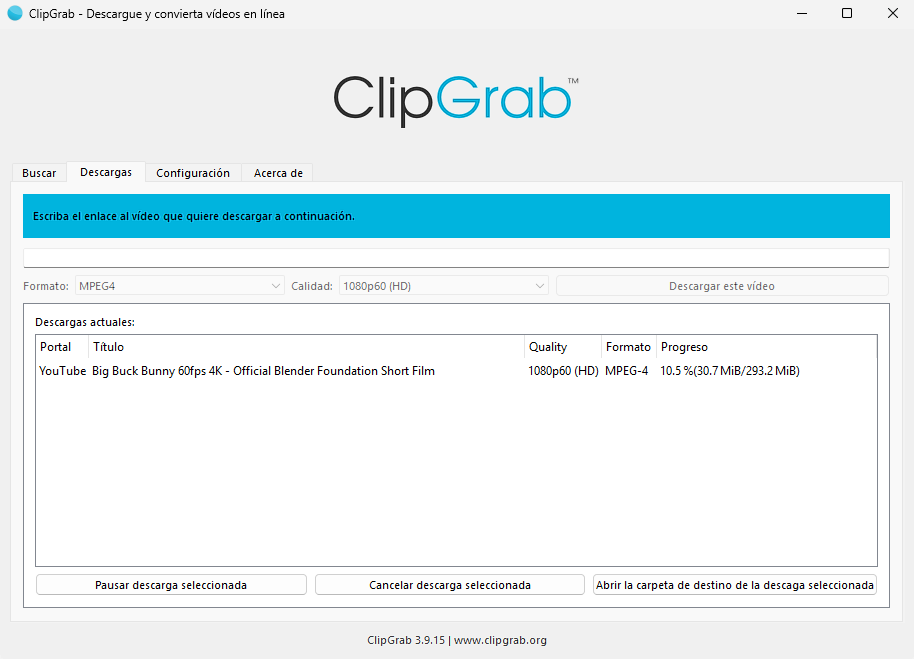
ClipGrab is a free video downloader for Windows with a straightforward interface. It lets you choose the resolution and output format before downloading, whether you want the full video or just its audio. There’s no complicated setup: paste the link, select the format, and start the download.
ClipGrab is aimed at people who just want to save an occasional video without installing anything complicated or dealing with advanced settings. Compared with the more modern yt-dlp-based interfaces covered earlier in this list, ClipGrab receives updates less frequently. In some cases, that can mean trouble downloading very recent videos.
Available on: Windows (versions for macOS and Linux are also available).
My verdict: I tested ClipGrab expecting it to be one of the more limited options on this list, but it handled the test video without any problems. Its interface feels like a throwback to another era, almost the Windows XP days, but it gets the job done. I’d recommend it to anyone who values simplicity over a long list of advanced features.
- Pros: Easy-to-understand interface; lets you choose the resolution and format without extra steps.
- Cons: Updates less frequently than modern yt-dlp-based alternatives.
11. 4K Video Downloader Plus
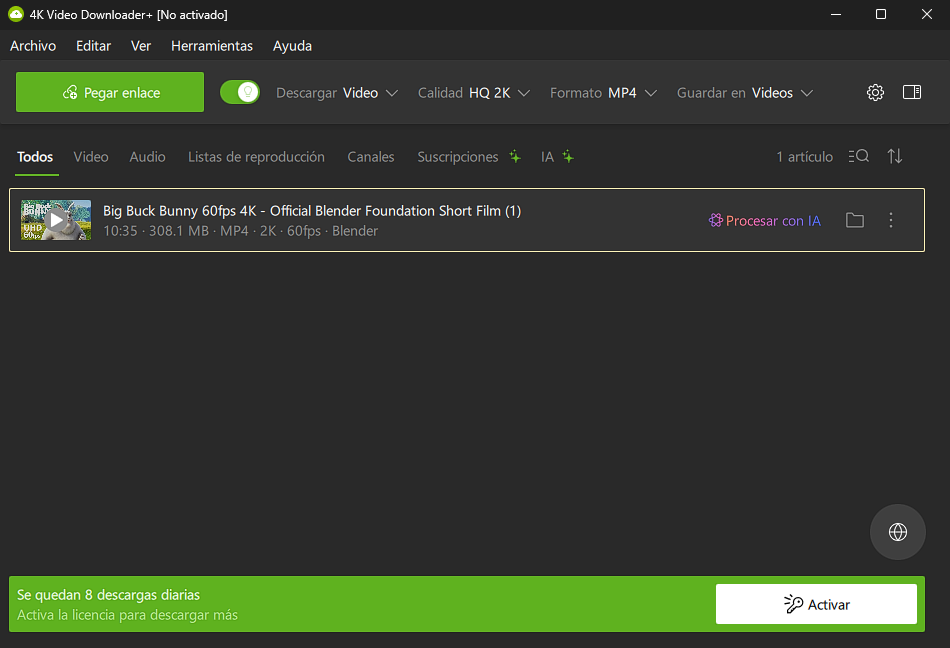
A polished interface, with plenty of nudges toward the paid version
4K Video Downloader Plus is the current version of one of the best-known video downloaders on the market, following the discontinuation of the original 4K Video Downloader app in February 2026. It includes a download queue, lets you choose the resolution and format, and can extract audio from videos.
The free plan, however, comes with some specific restrictions: a maximum of 10 downloads per day, up to 10 videos per playlist, and only two simultaneous downloads. Audio extraction is also limited to MP3 at 128 kbps on the free plan, well below what unrestricted free alternatives such as yt-dlp and its various graphical interfaces can offer.
Available on: Windows, macOS, and Linux.
My verdict: What bothers me most about this app is the constant stream of prompts inside the interface encouraging you to upgrade to the paid version. They get pretty annoying with regular use. The software works reasonably well, but the free-plan restrictions, especially the 10-download daily cap, put it behind alternatives such as Open Video Downloader and Stacher, which offer similar functionality without imposing download limits.
- Pros: Polished interface with a download queue and support for playlists and channels.
- Cons: The free plan is limited to 10 downloads per day and includes frequent prompts to upgrade to the paid version.
👉 Official 4K Video Downloader Plus website
12. Shutter Encoder
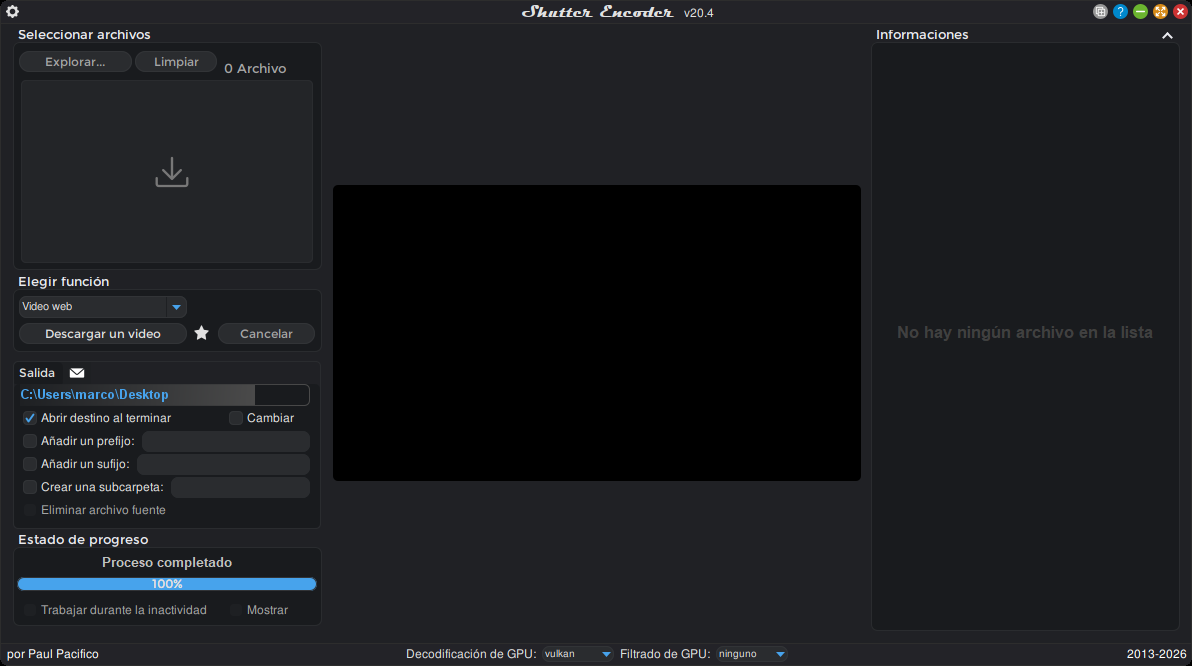
A powerful video converter that can also download YouTube videos
Shutter Encoder is a free, open-source media conversion and processing tool built around FFmpeg. It’s designed for video professionals, but you don’t need to work in video production to benefit from it. Along with converting and processing video and audio files, it can also download videos from the web, including YouTube.
To download a video, open the program and find the Choose function dropdown on the left. Scroll down until you see Web video download and select it. A download window will open. Paste the video URL into the URL field and click Start function. You can leave the download settings at their defaults, including the quality set to Auto. If you only want the audio, select Convert to MP3 before starting the download.
In my tests, Shutter Encoder downloaded the Big Buck Bunny test video at its highest available quality in just a few seconds, with the quality set to Auto. The resulting file was in WebM format, one of the main formats YouTube uses to deliver and store video. If you need a different format, such as H.264, you can use Shutter Encoder to convert the downloaded file. Just select the appropriate conversion function from the same dropdown menu.
Available on: Windows, macOS, and Linux.
My verdict: Shutter Encoder is worth considering if you want a full-featured media conversion tool that can also download YouTube videos. In my tests, the download itself was quick and straightforward once I found the right function. The main drawback is the interface, which isn’t particularly intuitive and can feel a little overwhelming at first. If all you need is a simple YouTube downloader, there are easier options on this list. But if you want a versatile tool for downloading, converting, and processing media, Shutter Encoder lets you do all of that in one place.
- Pros: Free and open source; combines video downloads with extensive conversion and processing tools.
- Cons: The interface can be confusing for beginners; more complicated than necessary if you only want to download videos.
👉 Official Shutter Encoder website
Choose the right tool for the way you use YouTube
There’s an option on this list for almost every type of user. The best choice depends mainly on how you use YouTube and which device you download videos on.
If you download videos on a PC and don’t mind using the terminal, yt-dlp remains the clear benchmark. Nothing else on this list matches its long-term reliability or its ability to adapt to changes in YouTube. If you prefer a graphical interface, Open Video Downloader offers the same underlying power without requiring you to type a single command. On Android, Seal covers just about everything you could want from a mobile downloader. And if you only need an occasional download without installing software, ytdlp.online is the only web-based option I tested that I’d confidently recommend.
There are a few other choices worth considering depending on your needs. Stacher is a good fit if you want a straightforward desktop app that configures its dependencies automatically. LibreTube lets Android users browse and download videos within the same app. Video DownloadHelper is convenient for Firefox and Edge users, while Parabolic is an especially strong choice on Linux. And if video conversion is part of your regular workflow, Shutter Encoder is worth a look because it combines downloading with a broad set of media processing tools.
Ultimately, you don’t need the tool with the most features. You need one that works reliably for your device and your workflow, without unnecessary limits or a confusing setup process.